Lock/Unlock Footprint Controls
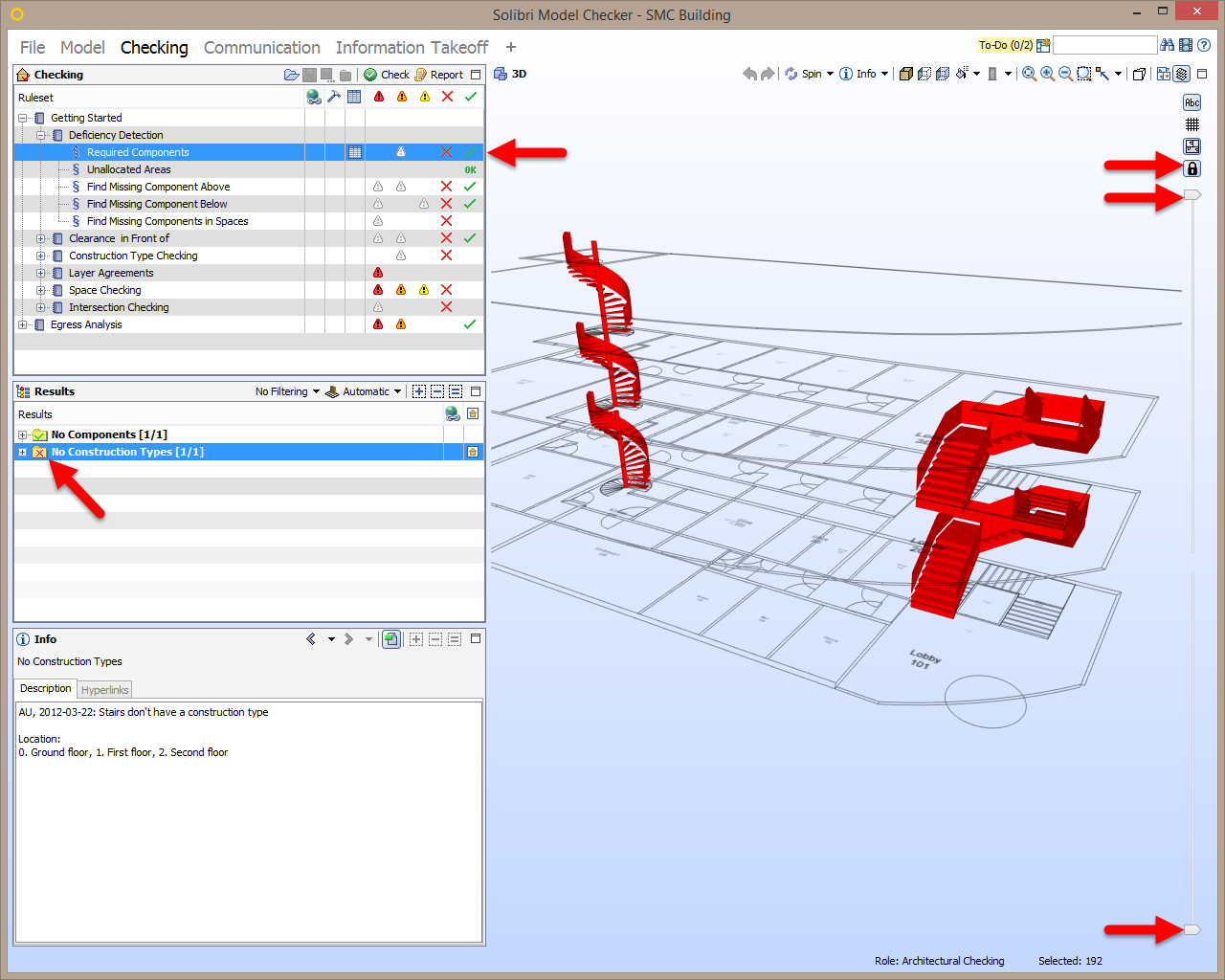
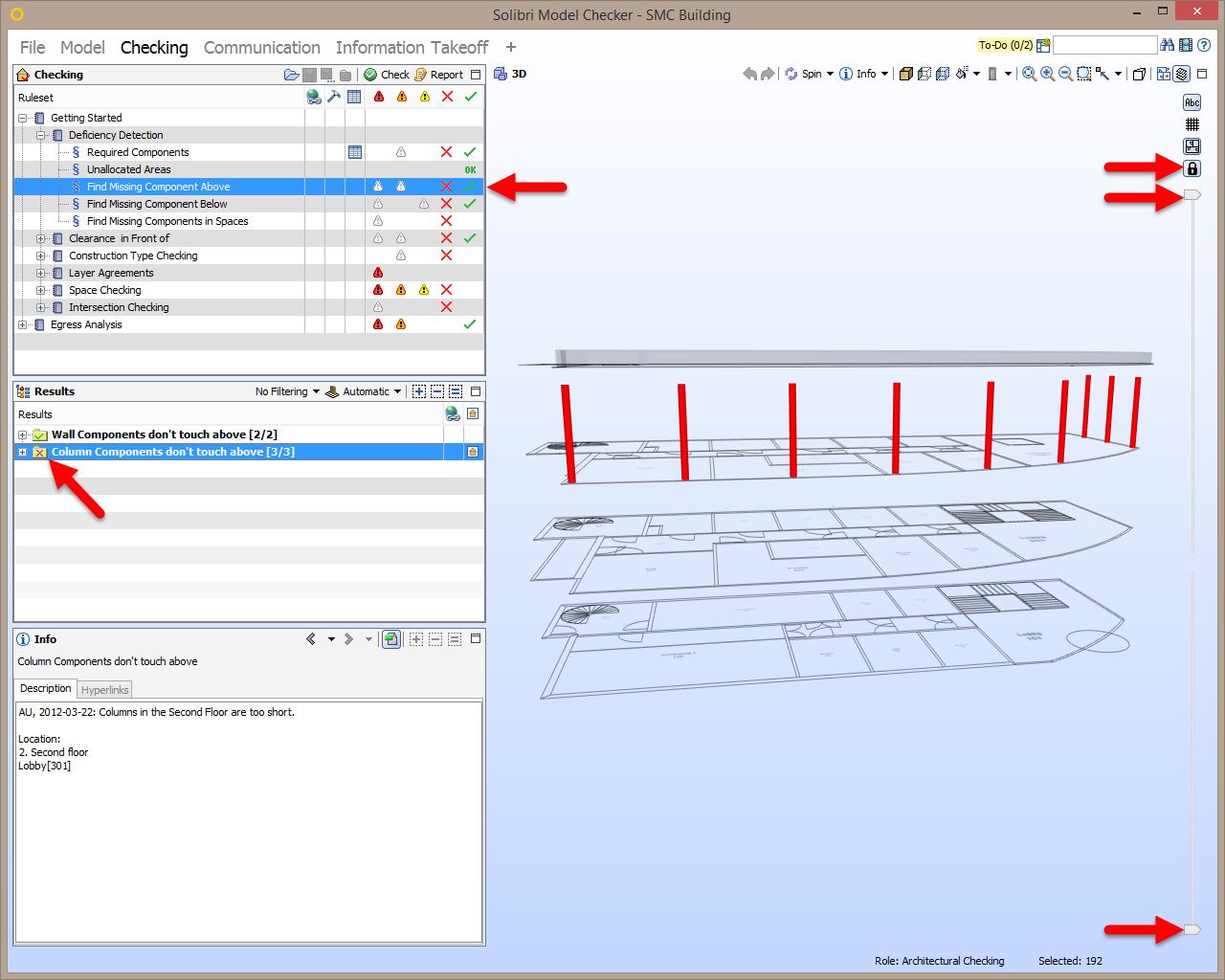
You can lock the footprint levels by clicking the Lock/Unlock Footprint Levels button in the footprint controls of the 3D View.
Once locked, the footprint level sliders will remain in their positions regardless of selecting a result in the Results View, a slide in the Presentation View, or a row within an Information Takeoff (ITO) definition.
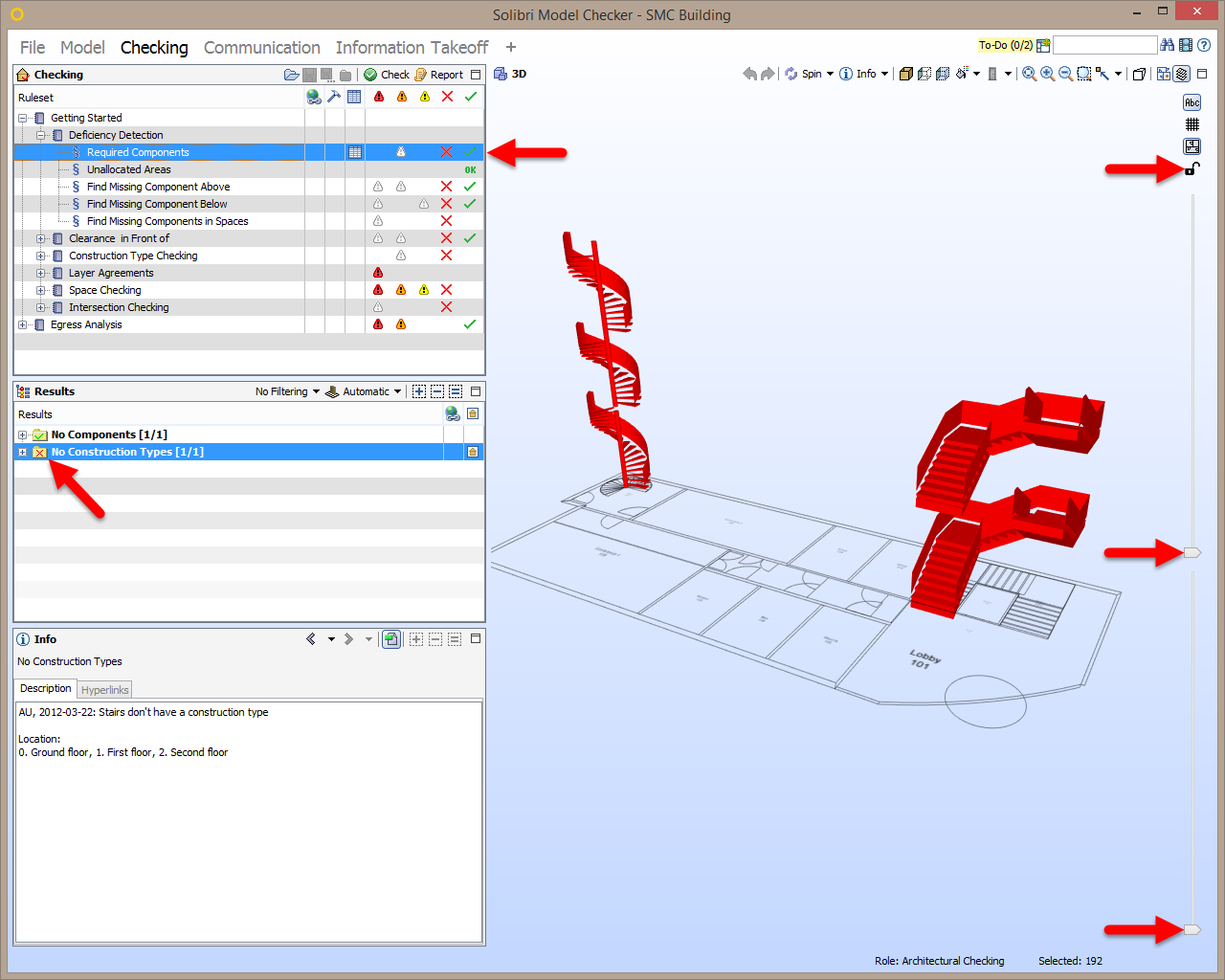
With the footprint levels unlocked the footprint levels automatically adjust to only show the footprints on the level where the components reside.
Here, with the levels unlocked, they adjust to show the footprint on the Ground Floor, where the stairs that have an issue are located:
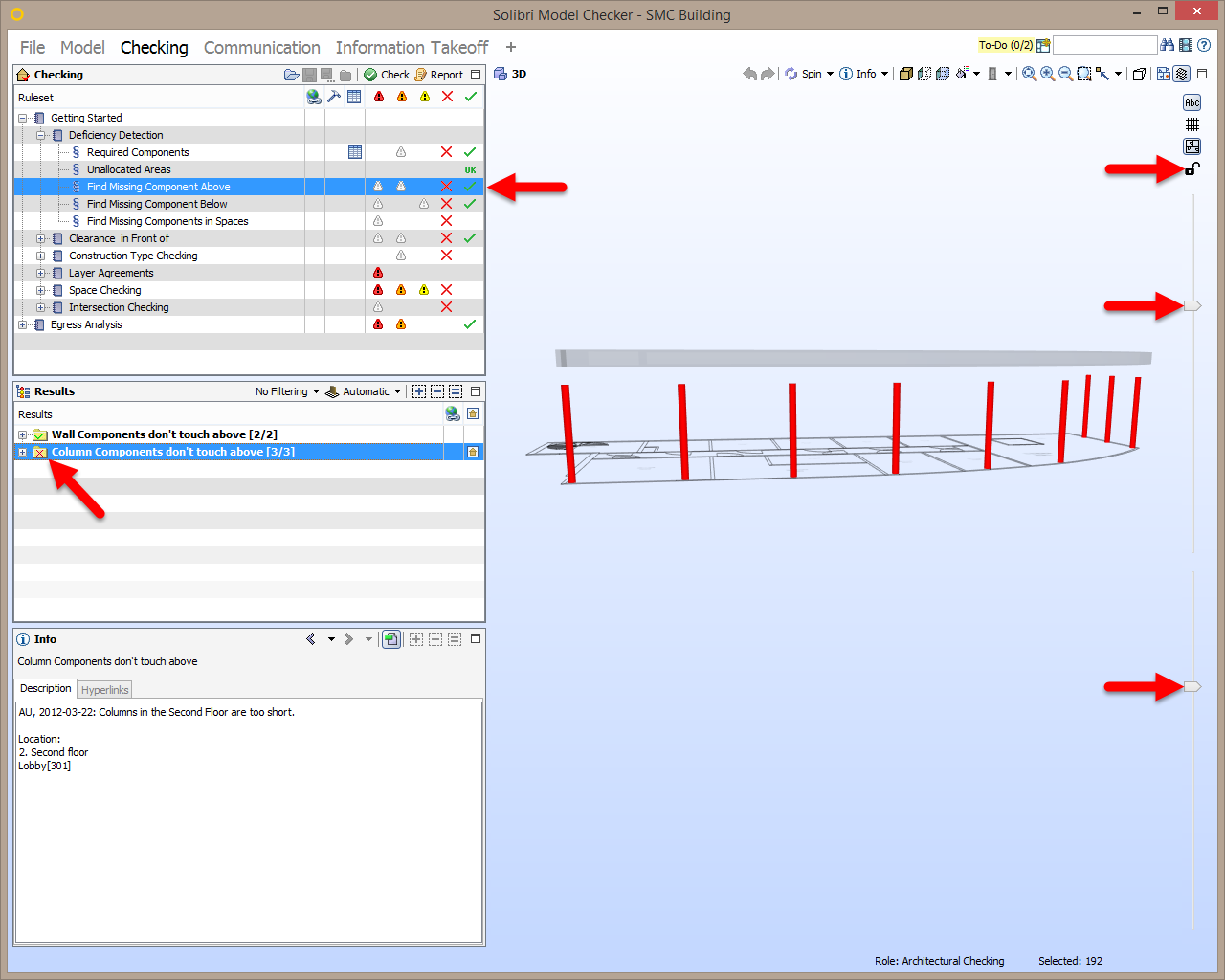
With Footprint Levels Unlocked, after selecting a different result regarding a column that resides on the Second Floor, the footprints automatically adjust to the Second Floor:
However, if we adjust the Footprint Level Sliders to display all levels, those footprints will remain locked as we switch between results: