SMC v9.6 introduces date-based checks
The recently released Solibri Model Checker (SMC) version 9.6 introduces support for “Date” properties. Rather than plain text, these properties include Month, Day, Year and Time of Day information from IfcDate properties. This allows components to be classified and visualized based on schedule information, as well as checks to be run against workflow schedules via rulesets. The following article provides details on how to set up the visual display of date properties in the settings of SMC, create date-based schedule classification, and generate Information Takeoffs that group components based on a construction schedule.
Date Unit Settings
SMC allows you to customize the date and time formatting, based on your own localization by clicking File > Settings > Units. For example, in the United States, dates are often formatted as MM/DD/YYYY as seen in the settings below:
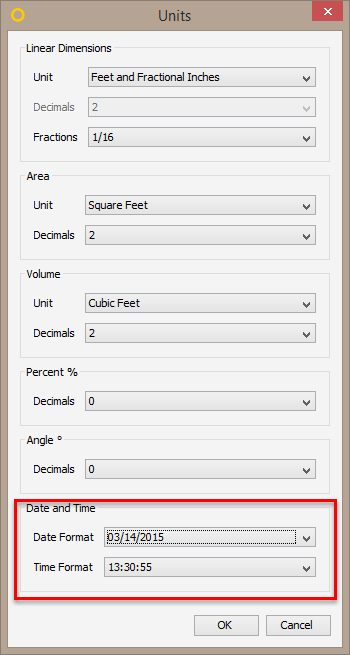
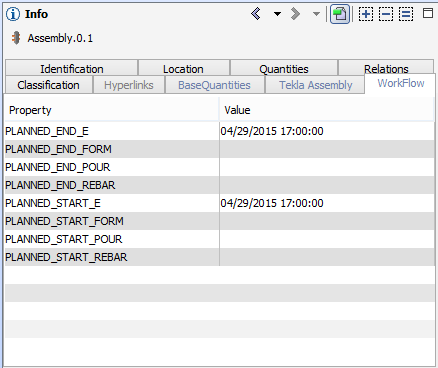
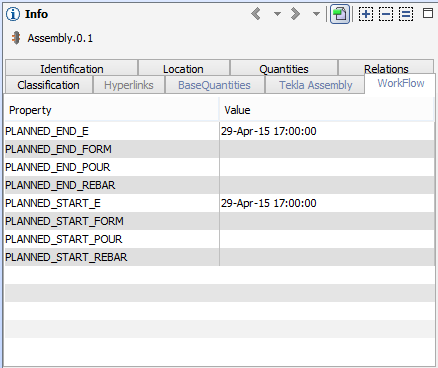
This results in all date information in SMC being displayed in this format, as seen in the Info View below:
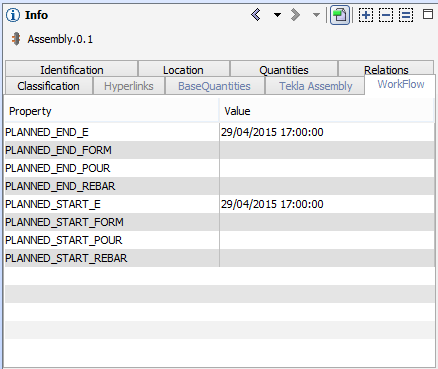
In many other countries, dates are formatted as DD/MM/YYYY, which is one of 18 settings that can be chosen from the File > Settings > Units > Date Format dropdown:Through this date format setting, all dates are displayed as DD/MM/YYYY as seen below:
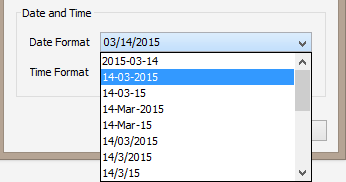
Through this date format setting, all dates are displayed as DD/MM/YYYY as seen below:
Classifications Using Date Information
The Classification View has been enhanced to support Date information in SMC. For more information on Classification in Solibri Model Checker, please follow the link below:
https://solibri.wordpress.com/2015/06/30/creating-classifications-in-smc/
In the Classification Settings, a Use Dates as Classification Names checkbox has been added. When selected, only dates can be used as classification names, and a date picker is provided to ensure a valid date is entered in the Classification View screens.
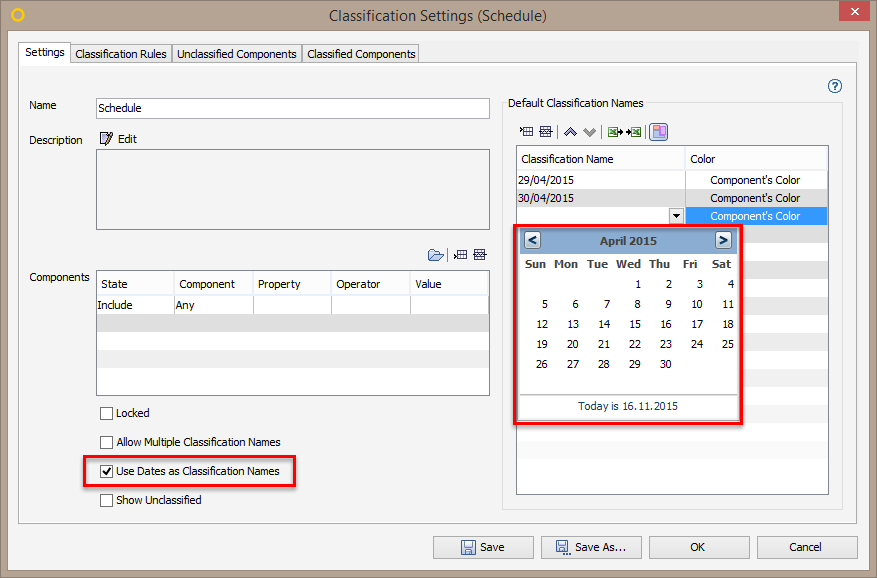
When creating any classification, SMC will look at a property of a component and based on the value (in this case, the date) generate distinct date classifications for use in SMC.
To begin using date information in a Classification, first ensure the date information is present in the model. In this example, the date information is coming from the WORKFLOW information tab. Each component in the model should contain this schedule information.
Switch to the Information Takeoff view to display the Classification window. From here, we can generate new Classifications using the date information.
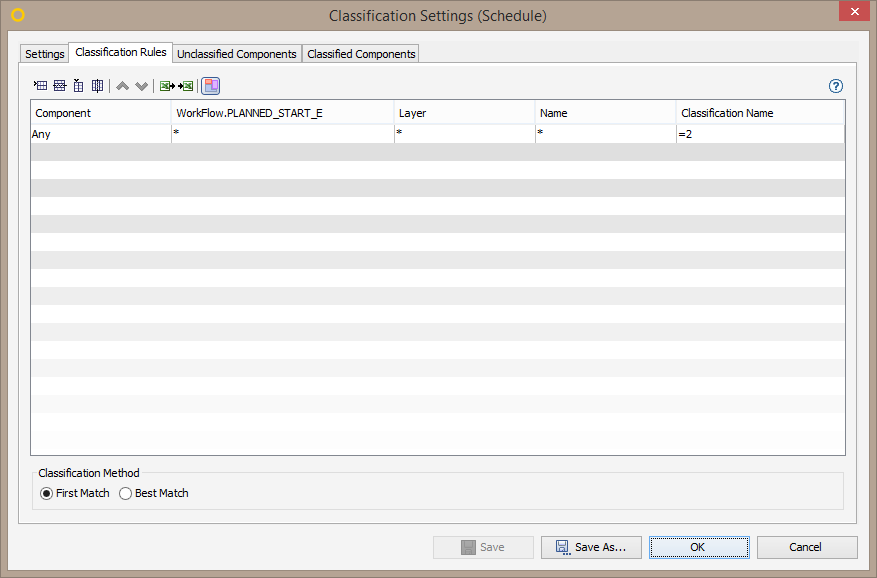
Select Classification Settings. In this example, the Classification is using the property PLANNED_START_E to define the classifications, and the Classification Name will be the same as the value of the property (in this case, the date).
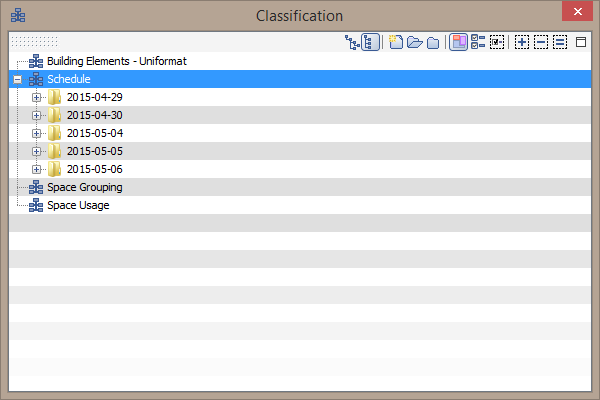
If the PLANNED_START_E date changes with new updates of the model, the Schedule Classification will also change to reflect the new dates.
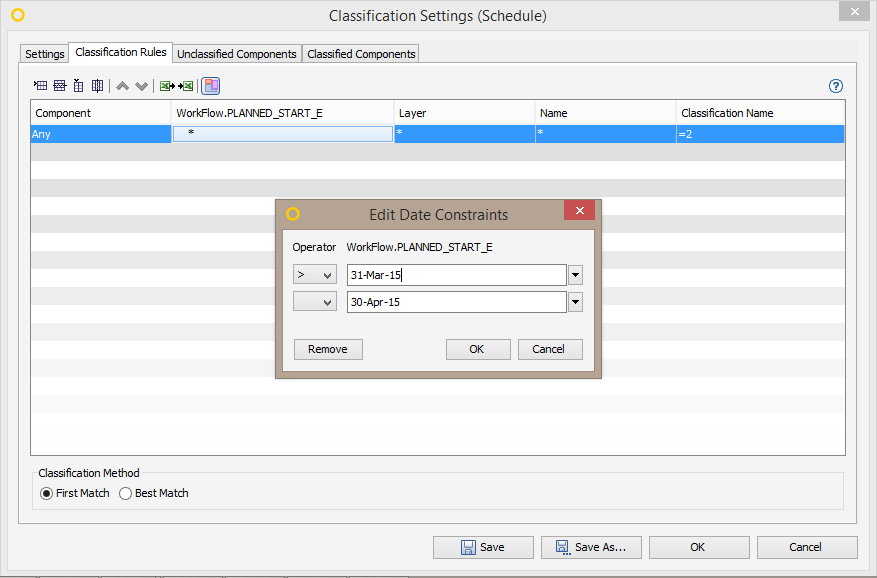
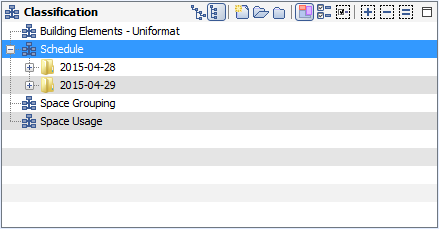
In Classification Settings you can create a date constraint to limit the dates that are classified by double clicking on the PLANNED_START_E column. Below, the constraint has been set to only create a Classification for dates between March 31, 2015, and April 30, 2015.
As a result, the only displayed Classifications listed under Schedule are dates within the specified date range.
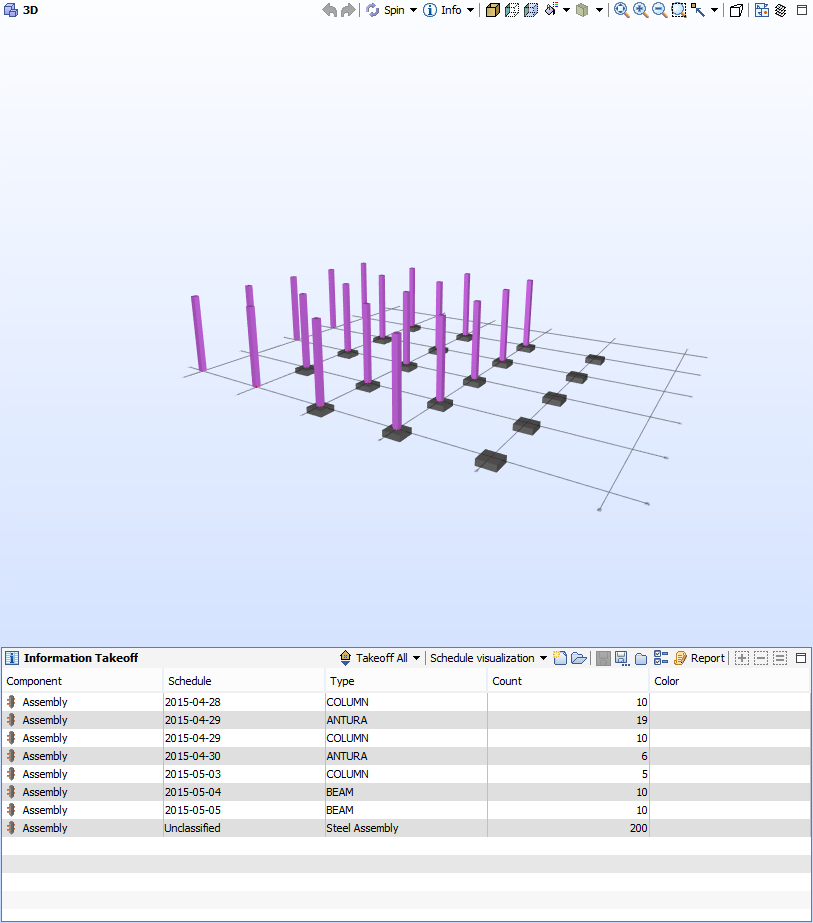
In addition to being a useful tool for managing the model and checking schedule compliance, Schedule Classifications can also be used in an Information Takeoff. The construction of components can be visualized by selecting rows sorted by construction start date. Other quantity information such as counts of doors or windows, or lengths of beams can be added as columns as well, to provide schedule-based quantity takeoffs.