Solibri CheckPoint Library: Reuse Rules, Filters, and Data Views for Consistent BIM QA
Introduction
Libraries make collaboration smoother by allowing teams to reuse filters, rules, and data views within projects or across the whole company. Instead of rebuilding the same resources repeatedly, you can promote and publish your best work so others can use it either within a single project or across your entire organization. This feature is ideal for teams working on models or datasets where reusability and consistency are critical.
Project-level sharing: Resources shared with all contributors (Admin/Member) of a specific project.
Company-level sharing: Resources made available to all projects across your organisation.
The Project Library feature allows team members to collaborate more efficiently by sharing project library resources (filters, rules, and data views) within the same project.
With the Company Library feature, Project Admins can promote high‑quality Project Libraries to the company level, turning them into Company Libraries that can be used in projects across the whole organization.
Feature Overview
Project Admins can share library items (rules, filters, or data views) so that all collaborators (Project Members and other Project Admins) in the same project can access and run them.
Project Admins can also publish all the items to the company level, making them available in other projects.
In a new project, Project Admins can browse the list of company-wide libraries and choose which shared Project Libraries to add.
Key concepts
Project: A space where multiple users collaborate on specific model sets.
Library Item: A shared filter, rule, or data view.
Workspace: A user-specific “place” from where users can run and edit the resources that they have editing rights for. Previously referred to as “filter/rule/data view manager”.
Project Library: A collection of reusable assets (rules, filters, data views) accessible to all users within a specific project.
Company Library: A collection of reusable assets (rules, filters, data views) that were published from a Project Library accessible across all the projects within the organization.
Scope: Determines who can see and use an item.
Personal: Only you can see and use it.
Project: All collaborators in the current project can see and use it.
Company: Everyone across the organization can access it.
Roles & Permissions: Access to shared libraries (Project and Company) is governed by project roles (Project Admin or Project Member). Project Admins can create and manage the shared libraries; Project Members can only use the resources from shared libraries as they are.
Library sharing levels
Our library system supports three levels of sharing:
Personal Library: Visible only to the user who created the resources. Since it's user-bound, the Personal Library can be accessed in all the projects the user has access to.
Project-Level Library: Shared among all users in a single project. Project Admins can manage and edit the library items.
Company-Level Library: Assets can be published by Project Admins to be added to any project across the organization. This promotes consistency and reduces duplication of work across teams.
Note: Only Project Admins can create Project Libraries and publish them to the Company level so they are accessible within the organization
Creating, Managing, and Using Project Libraries
All users can create Personal Library items that are visible only to them. Because the Personal Library is user-bound, it can be accessed in all projects the user has access to.
Project Admins can convert their Personal Library items to Project Library items; once converted, the item is removed from the Personal Library. All Project Library items are moved into a special folder called Created in this project, which is visible only to Project Admins. Project Admins can edit or delete these Project Library items and can run them directly from the Created in this project folder in their workspace (filter/rule/data view manager).
Project Members can browse the available Library items from the Library tab and add the resources they want to use in their workflows. Project Members can run all the items added to their workspace but cannot edit or delete Project Library items; however, they can duplicate them. When a Project Library item is duplicated, it is added to the user’s Personal Library, and Personal Library items are not visible to other users.
Publishing as Company Library
Project Admins can promote high-quality Project Libraries to the company-level library for use across all future and existing projects within the organization. Only Project Admins can publish a Project Library as a Company Library.
How to publish
1. As a Project Admin, open a project that has the Project Library you want to share across the organization.
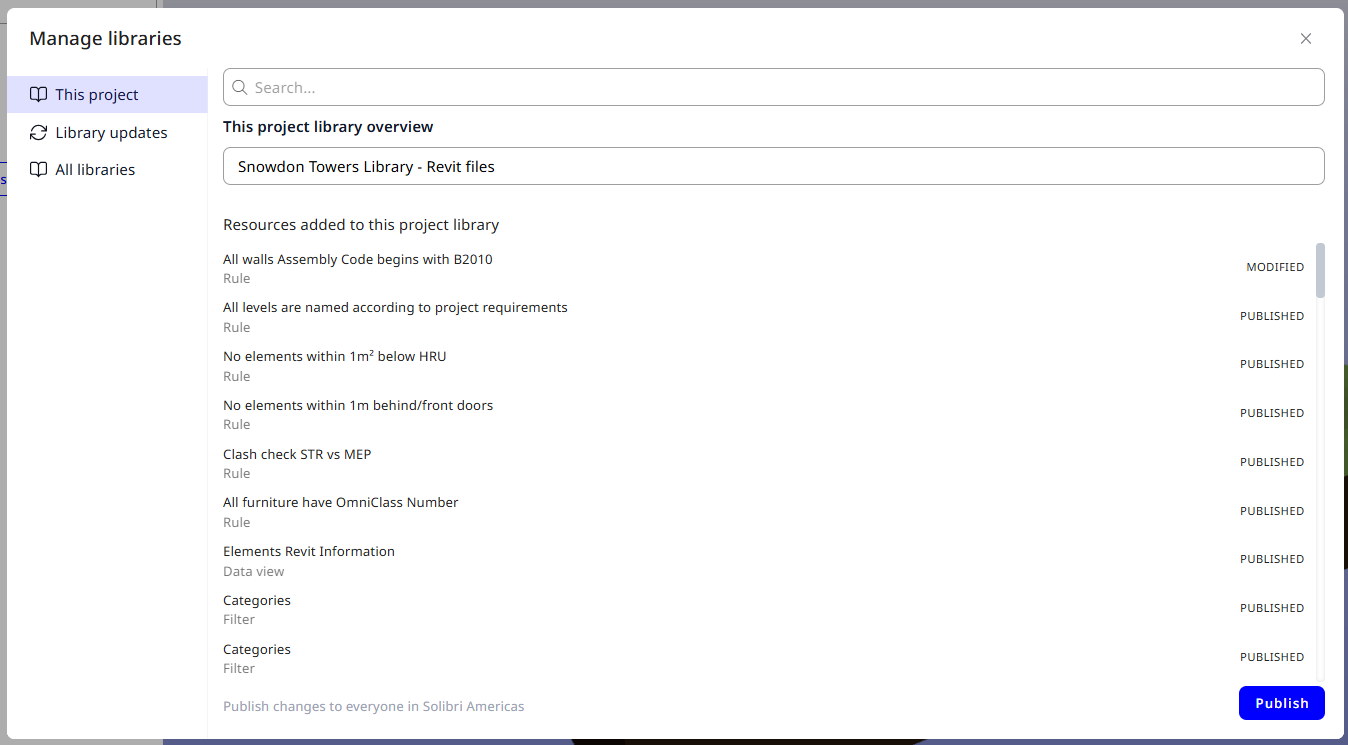
2. Go to the Library tab and click Manage.
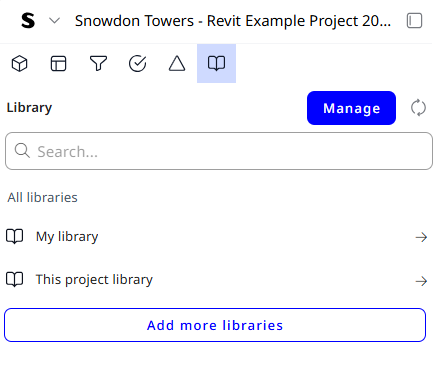
3. Review the items in This project library.
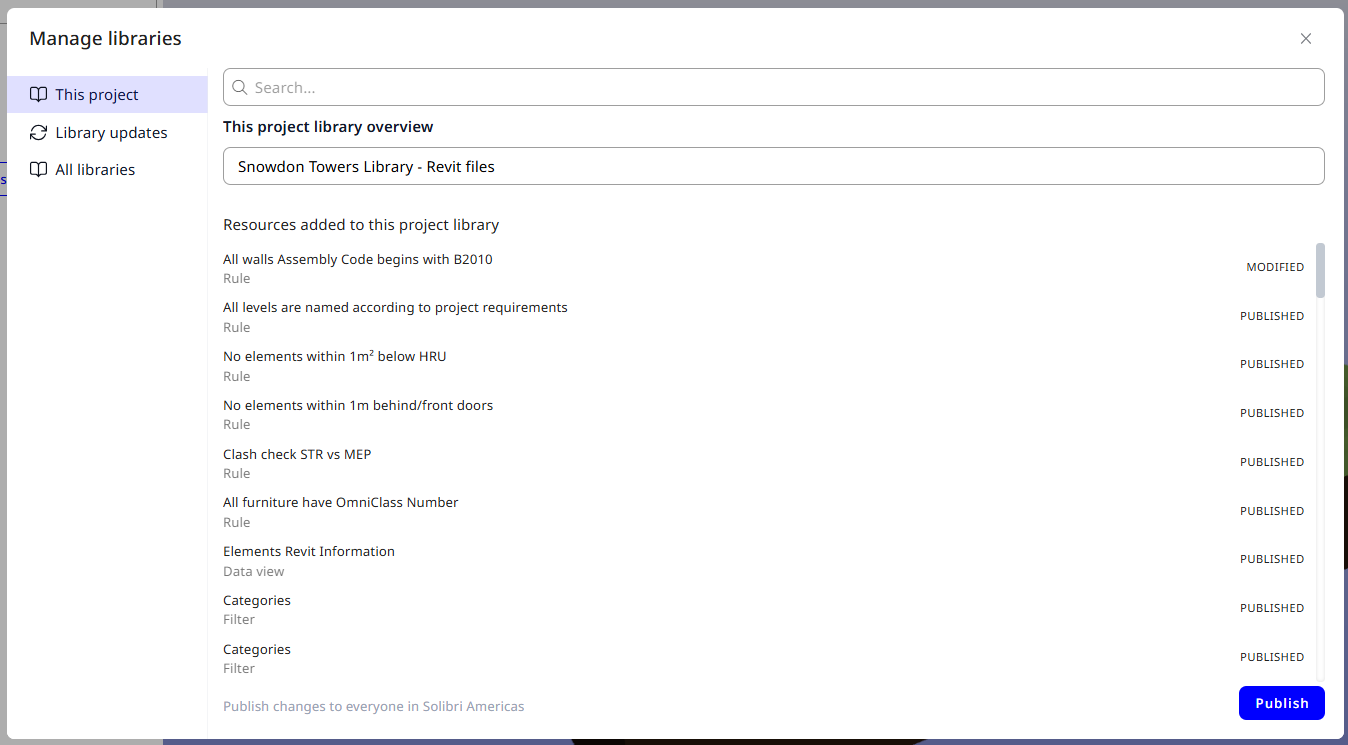
3. Give the library a nice, descriptive name.
4. Click Publish.
Using Company Libraries in New Projects
In another project, the Project Admin of that project can select from the list of existing Company Libraries to add to the project.
How to add Company Libraries to a project (as a Project Admin):
1. Inside a project, go to the Library tab and click Manage.
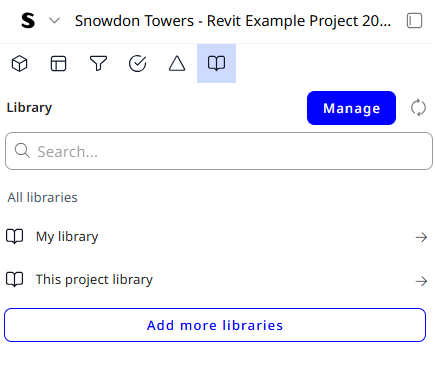
2. In the dialog window, go to All libraries from the left panel.
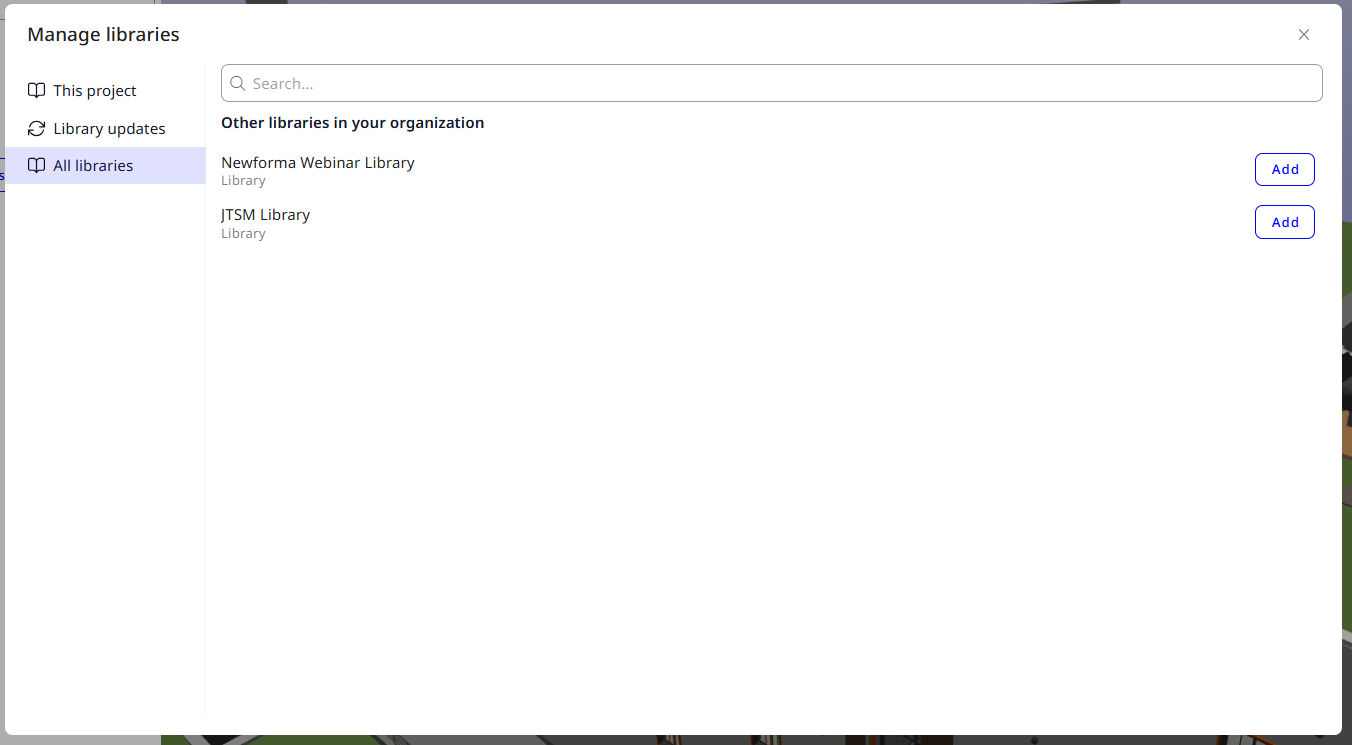
3. Browse or search available Company Libraries.
4. Click Add.
The selected libraries will be available in the Library tab. Project Admins and Project Members of this project can run Company Library items by adding them to their workspace (filter/rule/data view manager). Company Library items cannot be edited in the projects they are added to.
Editing and publishing Company Libraries
Company Libraries can only be edited inside the projects where they were originally created. In that project, they are represented as the This project library that has been published as a Company Library to the whole organization.
Project Admins of the project where this library was originally created and published can modify all the items, add new resources, or delete existing ones. After changes are made, the Company Library must be published again for the updates to be propagated across all the projects where this Company Library is used.
Updating Company Library items used in other projects
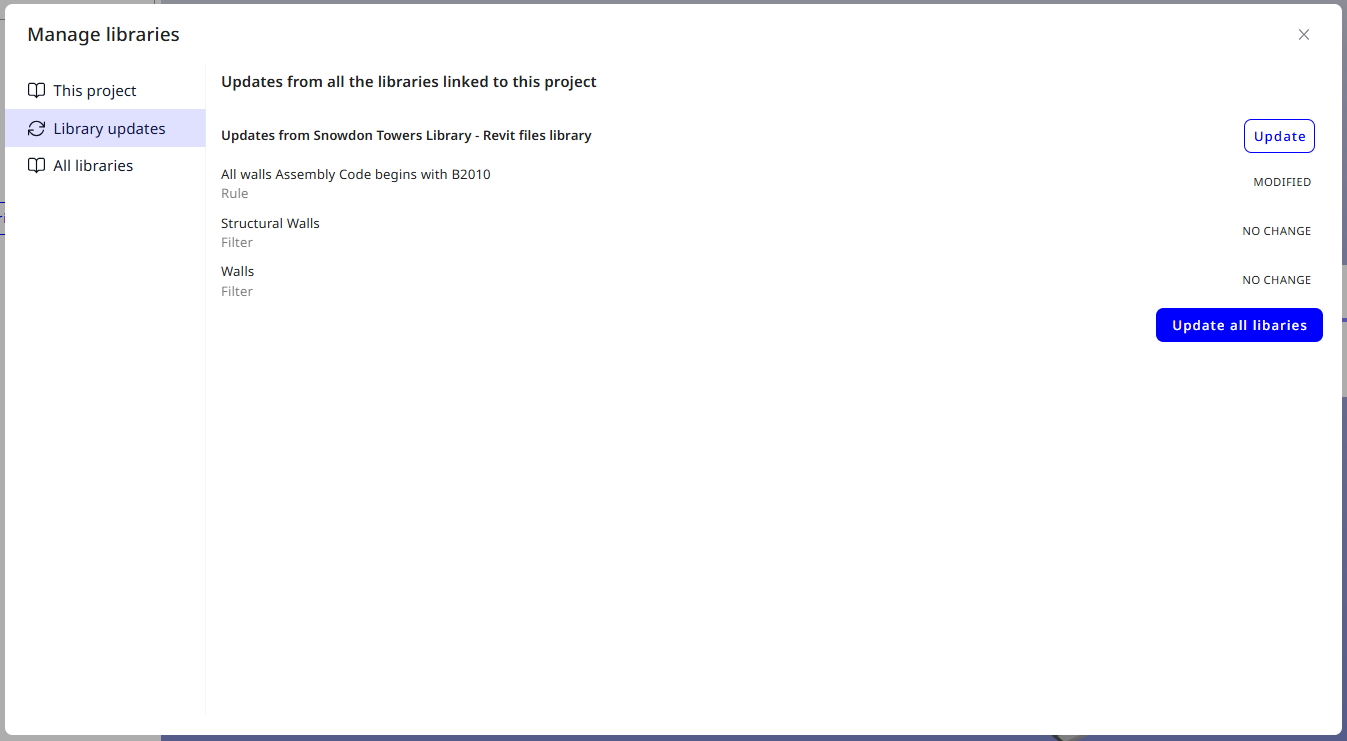
When library items in the project where they were originally created are modified, added, or deleted, and those changes are published by a Project Admin, other projects using these resources will be prompted about the update.
- If a project has a Company Library connected, but none of the project users have items from this Company Library added to their personal workspace, all the resources in the Company Library are automatically updated with no user action required.
- If a project has a Company Library connected and at least one project user has items from this Company Library added to their personal workspace, they will be prompted to update the library resources.
- If the user has Project Admin rights, they can update the resources immediately.
- If the user is a Project Member and sees that resources have not yet been updated, they need to ask a Project Admin to perform the update.
Project and Company Libraries: access and permissions
The following table summarizes typical actions and who can perform them:
| Action | Project Admin | Project Member |
|---|---|---|
| Promote individual resources to Project Library | Yes | No |
| Publish Project Library to company level as Company Library | Yes | No |
| Run Project / Company Library item | Yes | Yes |
| Duplicate Project / Company Library item to Personal Library | Yes | Yes |
| Edit Project / Company Library item in the original project | Yes | No |
| Publish Company Library changes from the original project | Yes | No |
| See that Company Library items used in the workspace got an update | Yes | Yes |
| Update Company Library items in other projects when changes are published | Yes | No |
Frequently Asked Questions
-
Yes. Add the item from the Project or Company Library to your workspace, then right-click the item and select Duplicate from the contextual menu.
-
You may not have the required permissions. Only Project Admins can edit Project Library resources, and published Company Libraries can only be edited by Project Admins inside the project where they were originally created. You can check your project-specific role by clicking your avatar.
-
All projects using that library will receive the update. Resources from the Company Library that are added to users’ workspaces will be marked as updated, and those users will be prompted to update the Company Library.
-
If a project where you are working has a Company Library added to it and a Project Admin updates the resources to the latest published version, you will get the updates. It is strongly recommended to update the library resources immediately to keep your organization’s workflows consistent, fast, and reliable; until you update, project members will not be able to use those resources.
-
Both Project Admins and Project Members can remove resources from their workspace. Removing a resource from the list in your workspace does not affect the underlying library resource or any other users in the project. If you no longer need to run a library resource, you can remove it from the list and add it back from the Library tab whenever needed.