Spaces and Void information – Using Information Takeoff
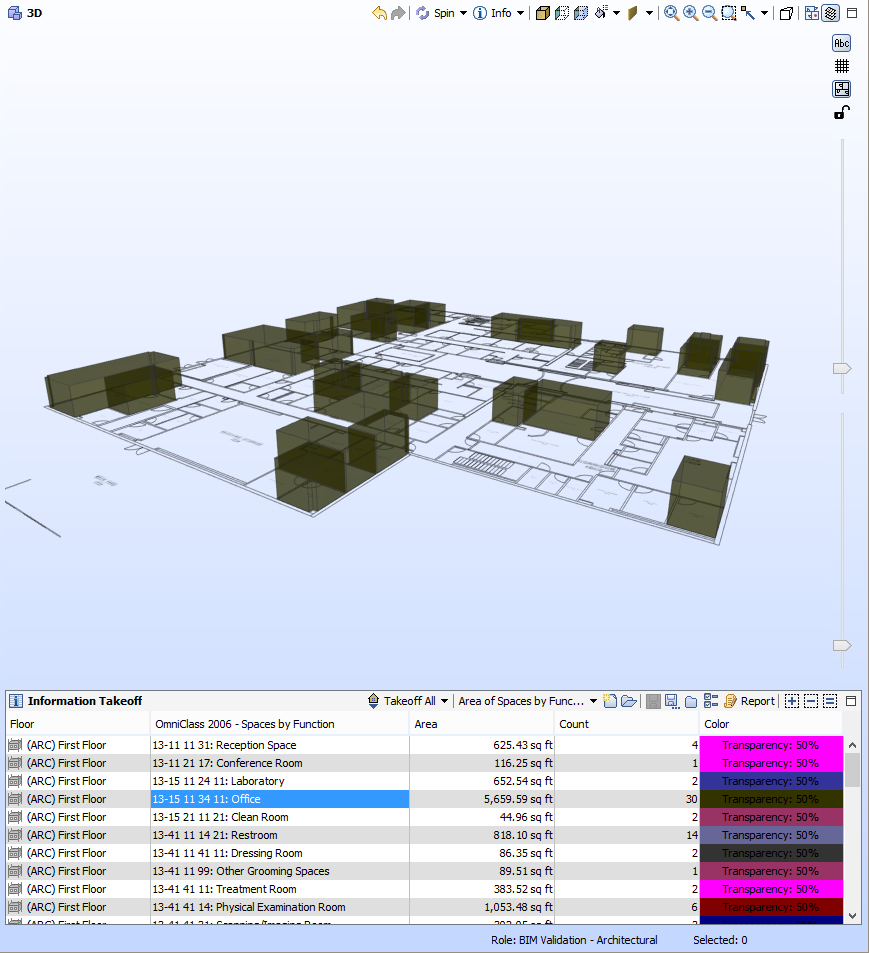
In an earlier article Using Advanced Classification in ITO we described how you can set up Information Takeoff (ITO) Definitions to report information on spaces. Namely, we looked at the function of the space as defined by the OmniClass classification system. This allows you to visually select and isolate spaces based on their category of use or function, as well as report their total area and counts for that type of space. For example, you could check the takeoff to verify that there are enough office spaces and area for those spaces on the first floor:
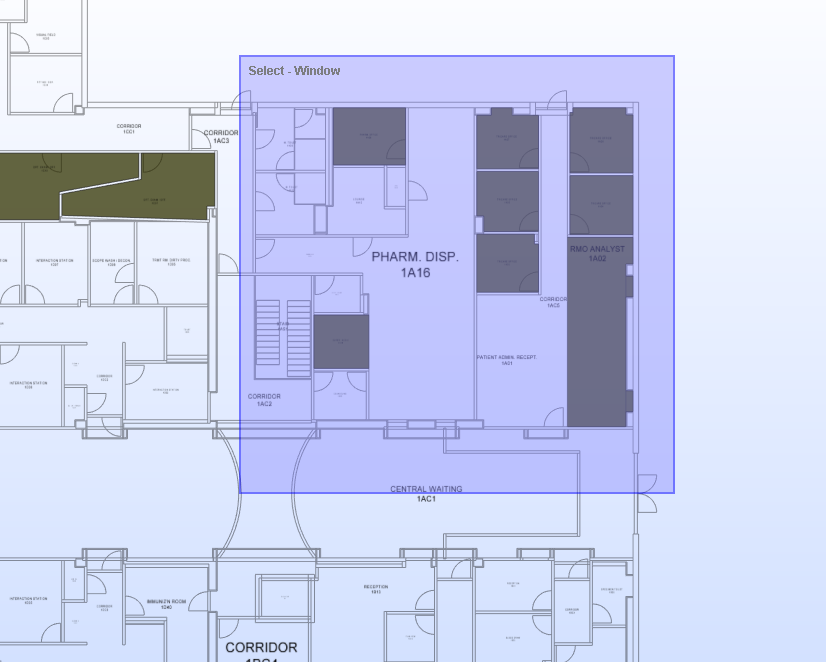
You can also zoom to a location in the model, and using the selection box tool, select those spaces from the takeoff.
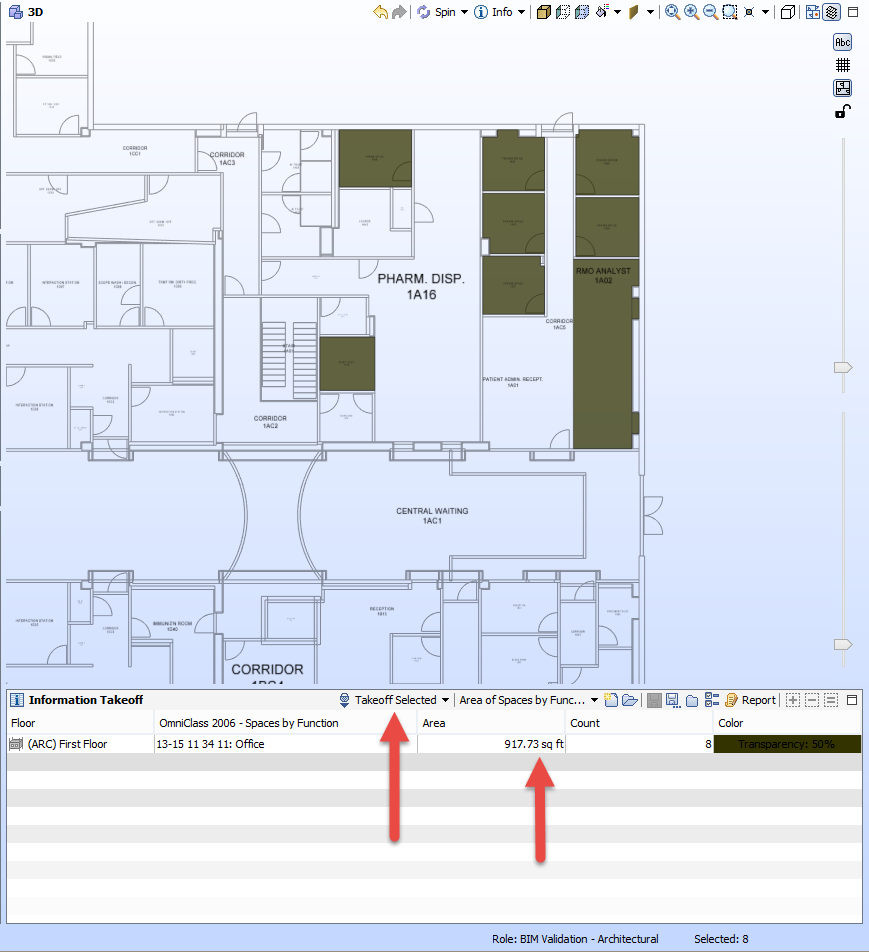
With only those spaces selected, by clicking Takeoff Selected, only those spaces have their total area and count reported. For example, below we ran a takeoff selected on only the office spaces in the pharmacy area.
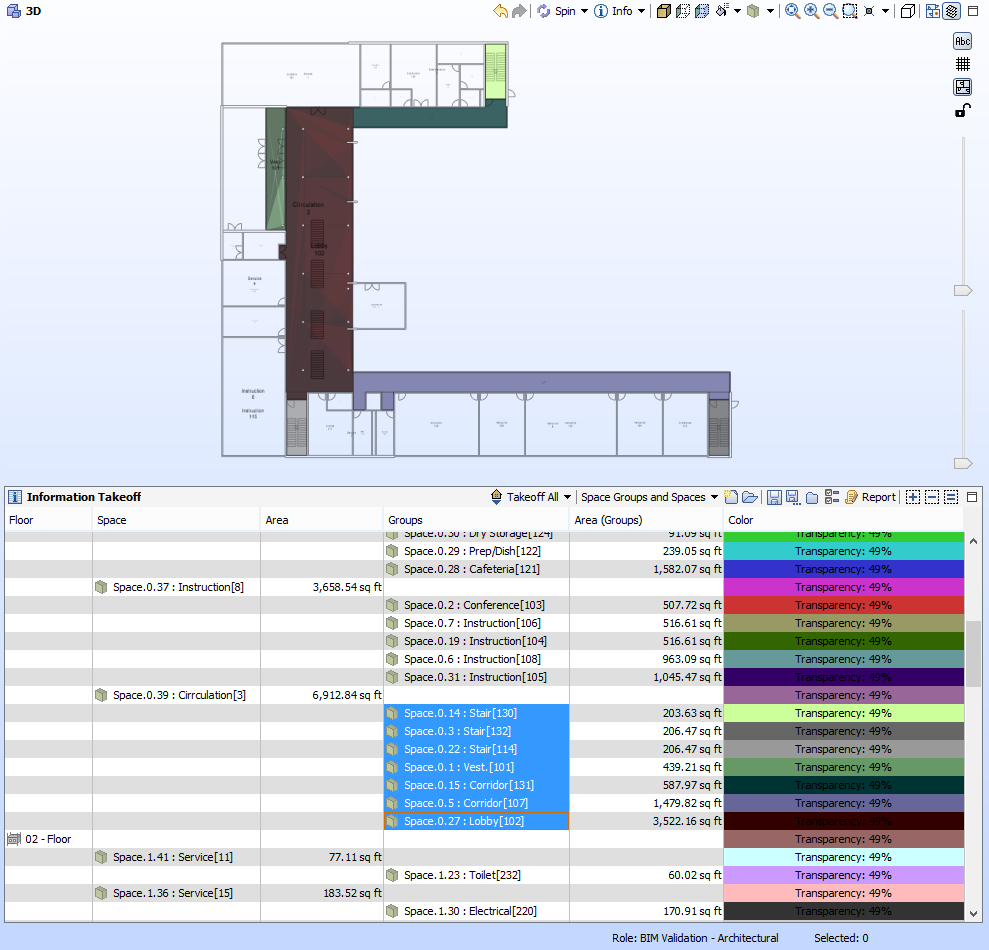
Any property of the space can be reported in the ITO. For example, instead of using the OmniClass category, you could create your own area plans to group spaces of a certain type. Below is a circulation space group from an area plan in Revit along with its reported area.
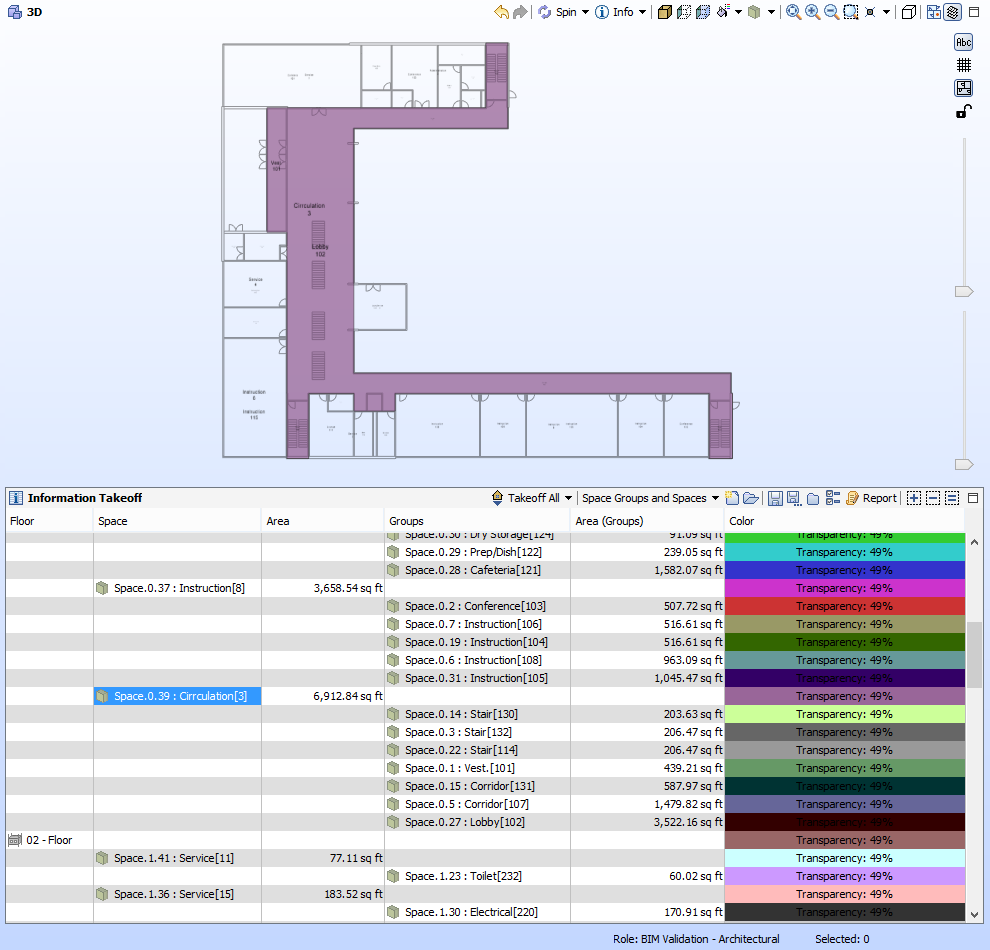
You can also select to isolate the spaces that are grouped by that space grouping or area.
In addition to spaces, ITO also provides a powerful ability to report information about openings that exist in other components. When you draw an opening or shaft in your BIM authoring tool, it creates a void that is automatically exported to an opening component in IFC. This gives SMC the ability to query useful dimensional information regarding these openings.
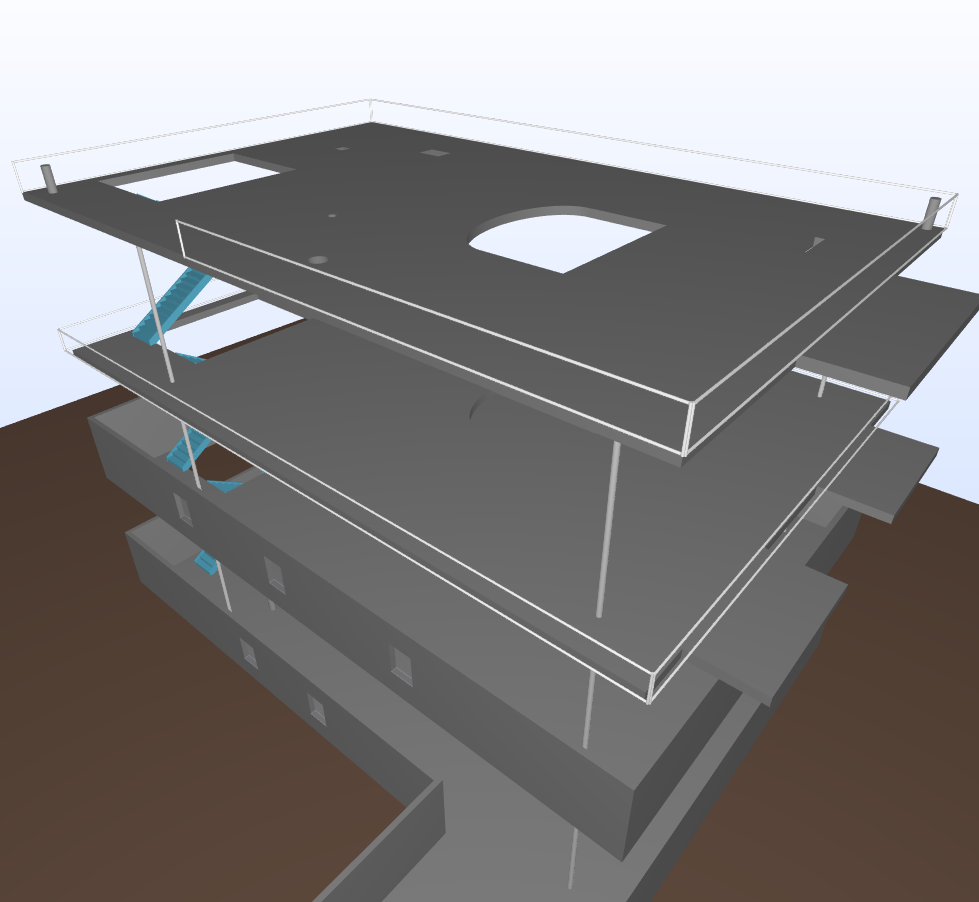
Below is a simple mockup of a construction site that has openings.
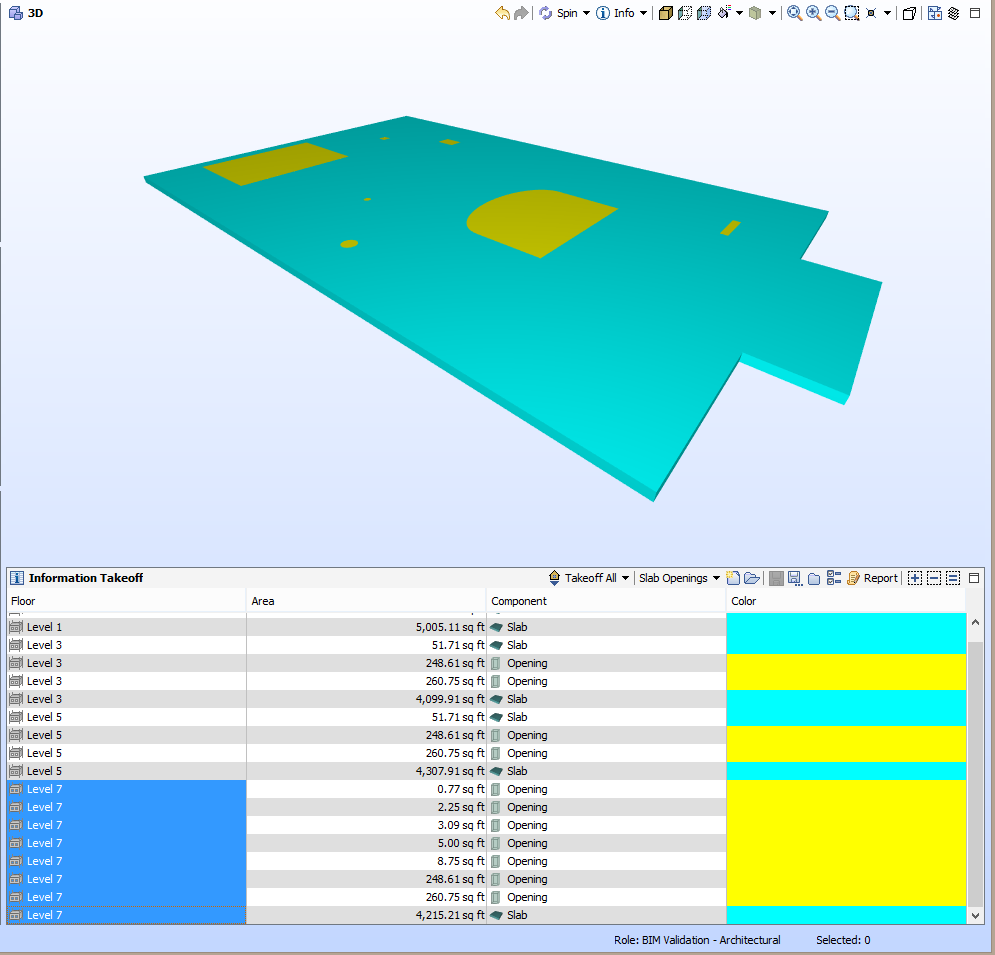
By running a takeoff on these openings and slabs, you can visualize where they are, along with the floor they reside on and their area. Below we’ve isolated the opening and slabs on level 7.
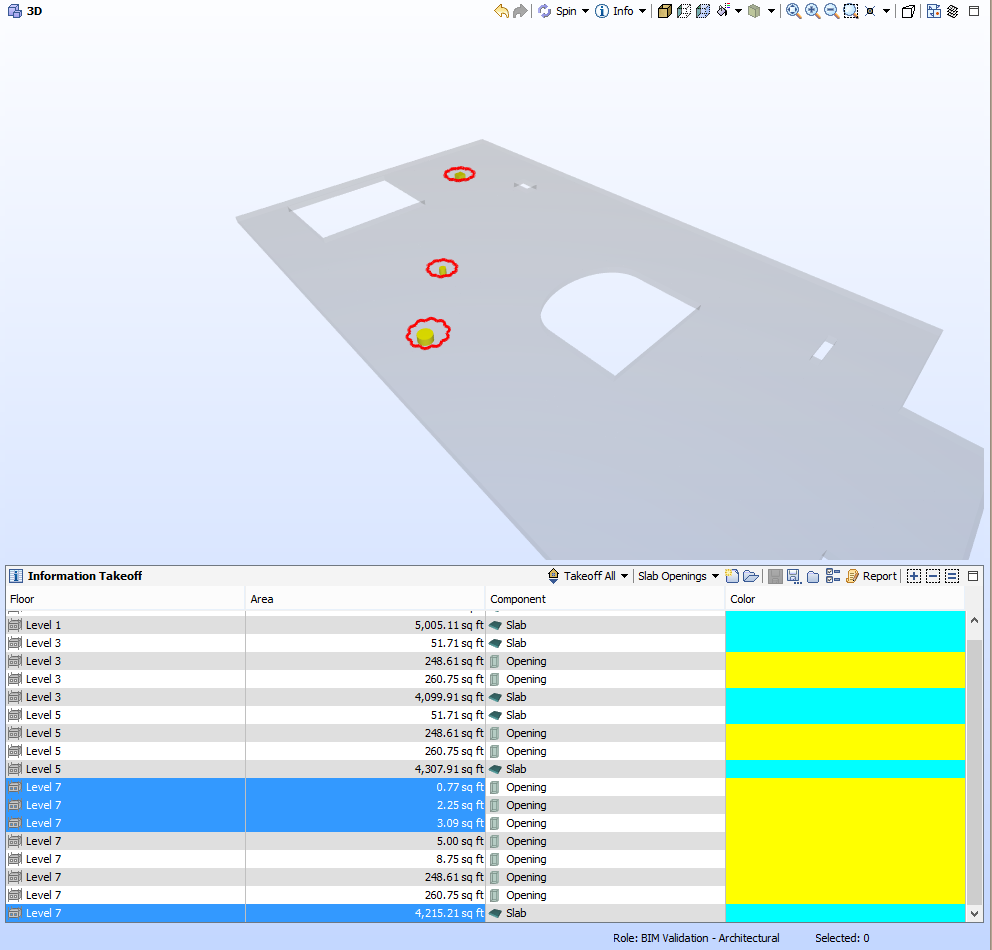
As the ITO is sorted by the area of the opening, we can easily find the smaller openings that pose a risk of tripping stepping into or objects falling through that would require covers or netting as opposed to openings that would require guardrail. Below, these openings are isolated and marked up using the cloud tool.
In summary, ITO provides a powerful reporting tool for not just physical components, but the spatial components (modelled or voids) within your model as well.