Using the Decomposes Relation Property
In this article we will discuss how the decomposes relation in Solibri can be used to more precisely check sub-components of assemblies such as stairs, as well as limit the number of results to just assembly components for intersecting components such as beam systems.
The Decomposes Relation Example.smc model used as an example in this article can be downloaded through the following link:
Decomposes Relation Example.smc
The Decomposes Relation
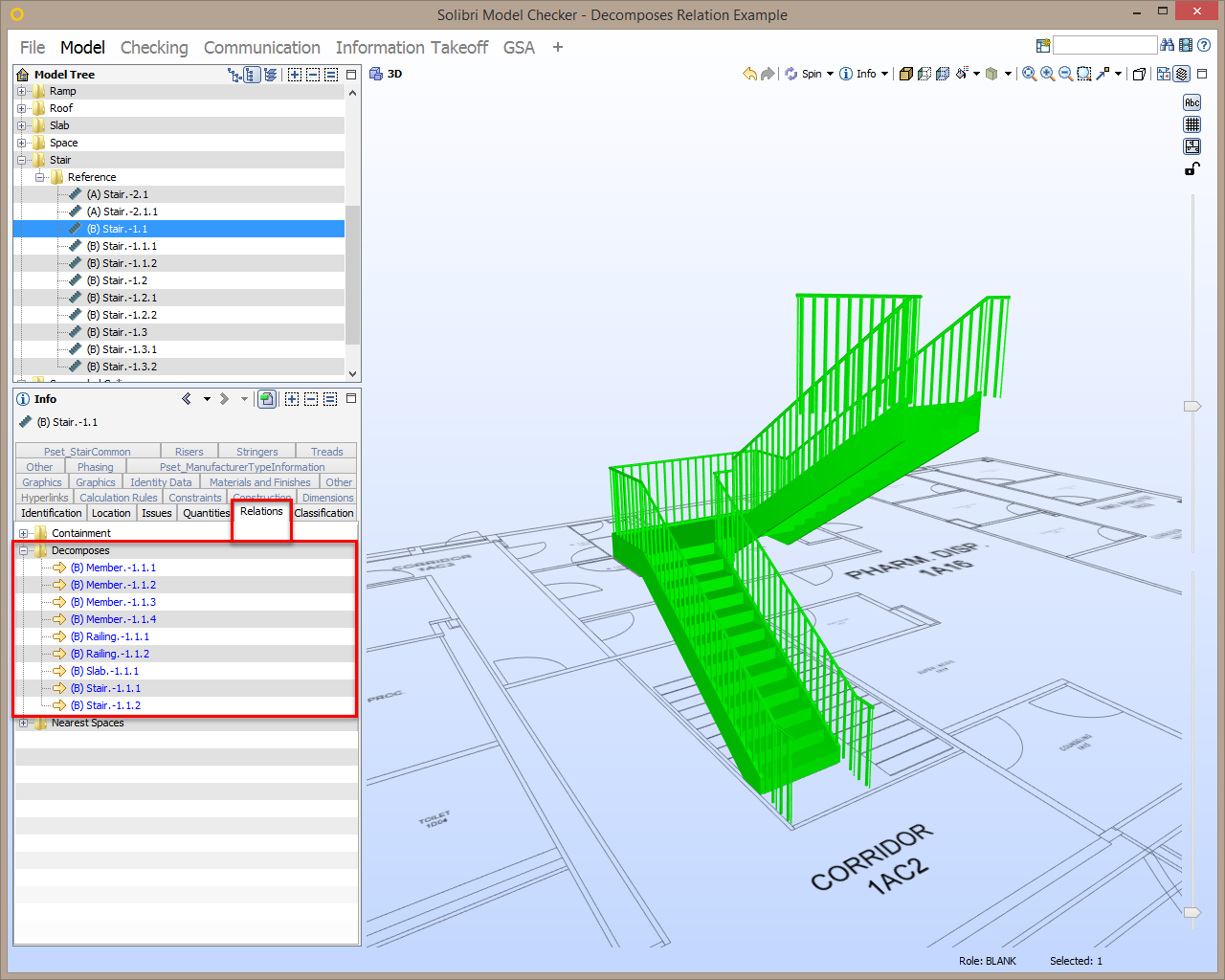
Model elements can have a decomposes relation to other model elements when those model elements are assemblies or sub-components that make up assemblies. Assembly components such as curtain walls, stairs, and beam systems have a forward decomposes relation to their sub-components. For example, a stair assembly has a forward decomposes relations to the stairs, railings, members, and slabs that make up the stair assembly.
In the screenshot below, you can see this forward decomposes relation in the Info View designated by a forward arrow next to the stair sub-components when selecting a stair assembly:
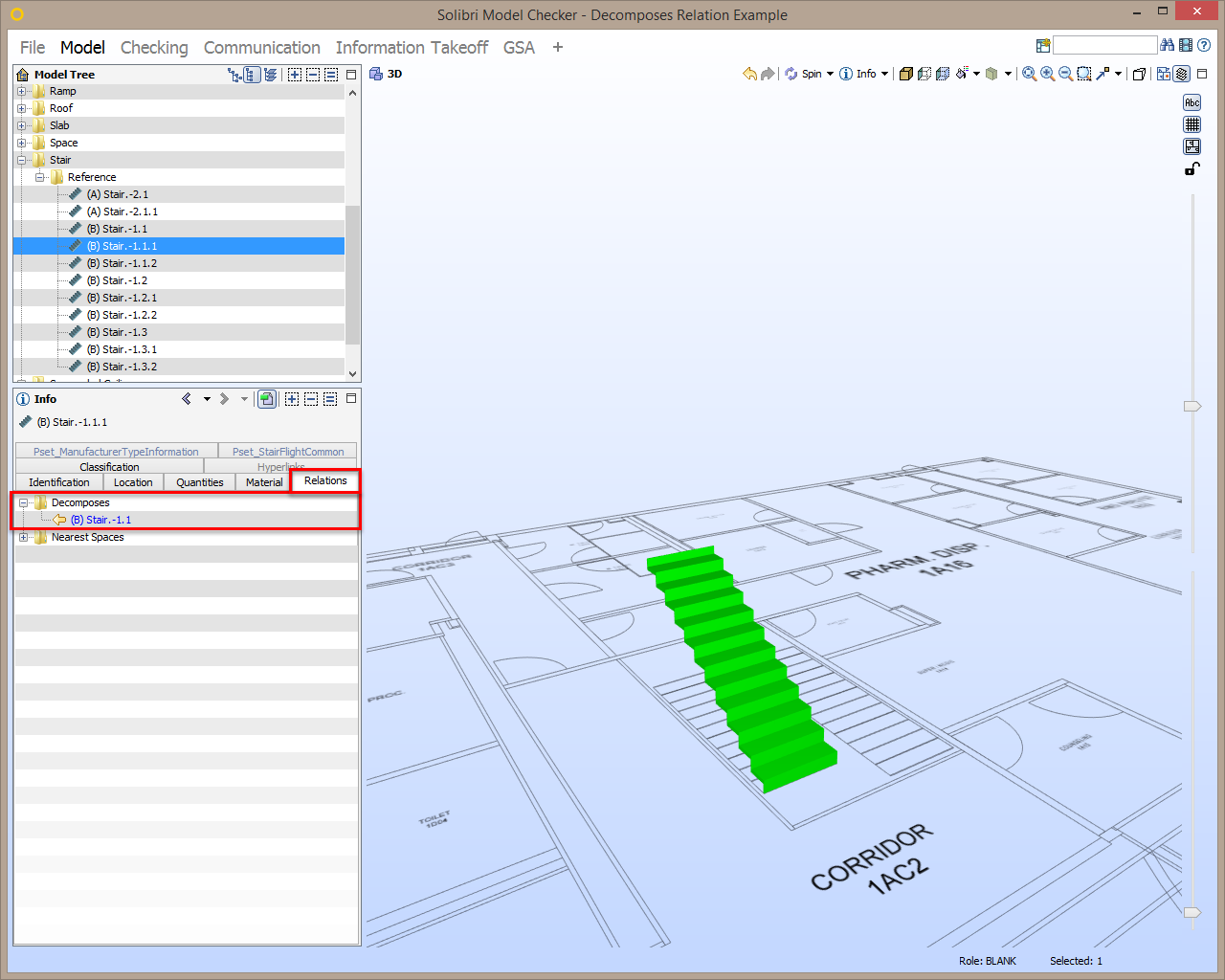
Likewise, sub-components that make up assemblies have a backward decomposes relation to their assembly components. In the screenshot below, the backward decomposes relation in the Info View is designated by a backward arrow next to the assembly component when selecting a stair sub-component:
These relations can be used as properties within the filter parameters tables in rule parameters. To do this, select the Relations radio button as the Property Group, select Decomposes from the Relation dropdown, and select either Forward or Backward from the Direction dropdown.
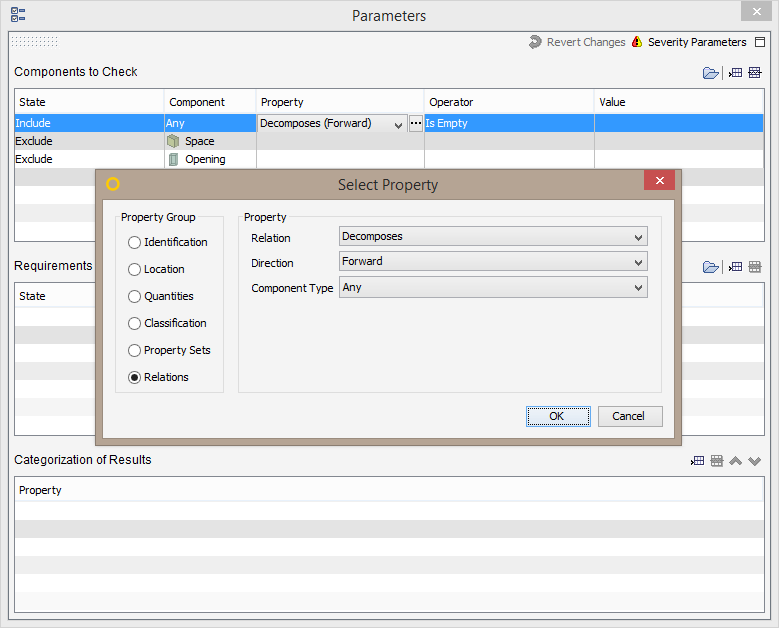
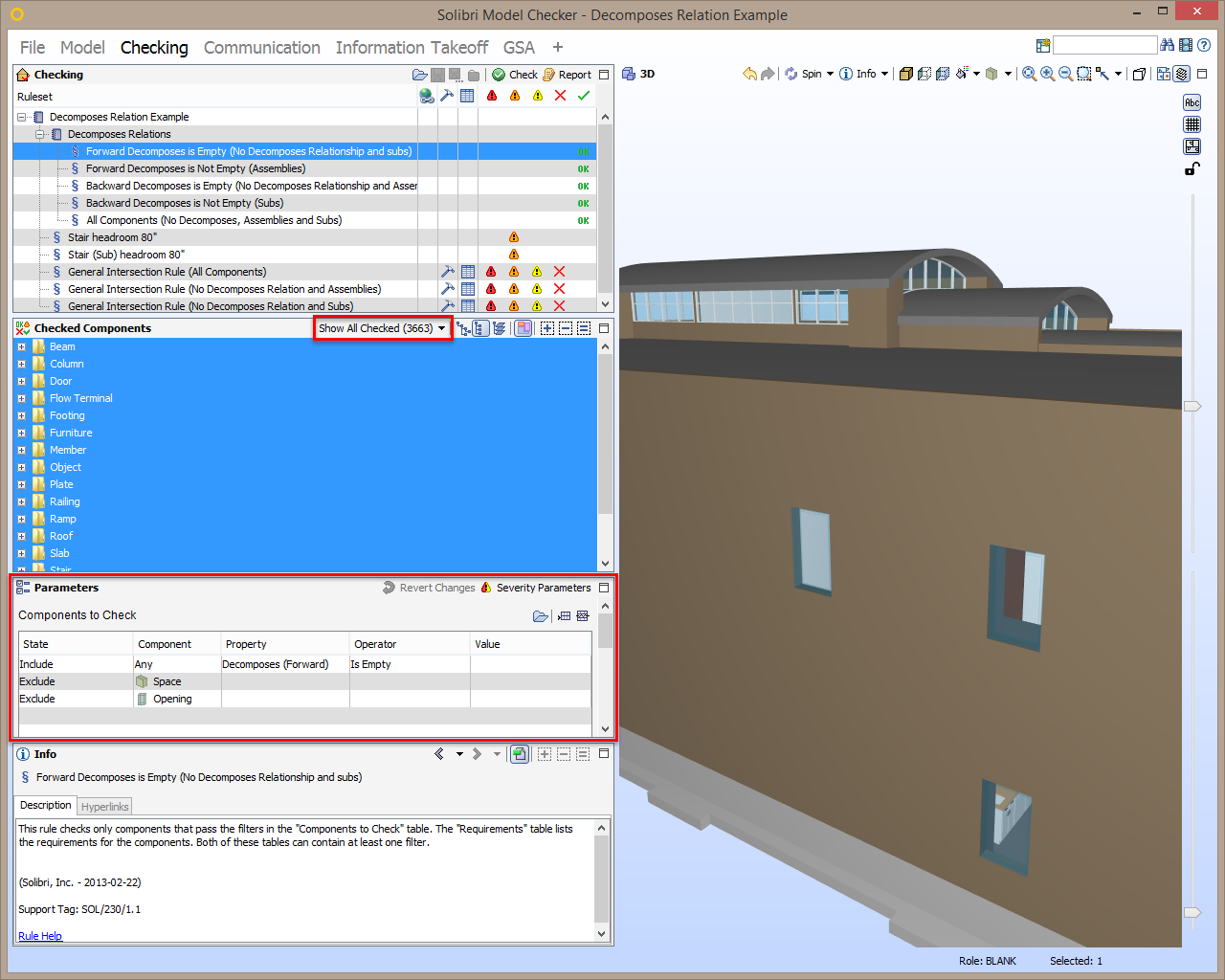
The Operator in the filter parameters table must be set to either Is Not Empty or Is Empty, to designate whether or not there is a relation to any components respectively. For example, setting the filter to include any component that has an empty forward decomposes relationship checks any component that doesn’t have any decomposes relation such as a wall, window, or door along with the sub-components of assemblies such as railings and beams, but not the assembly components such as stair assemblies or beam systems. This can be seen in the Checked Components View seen below:
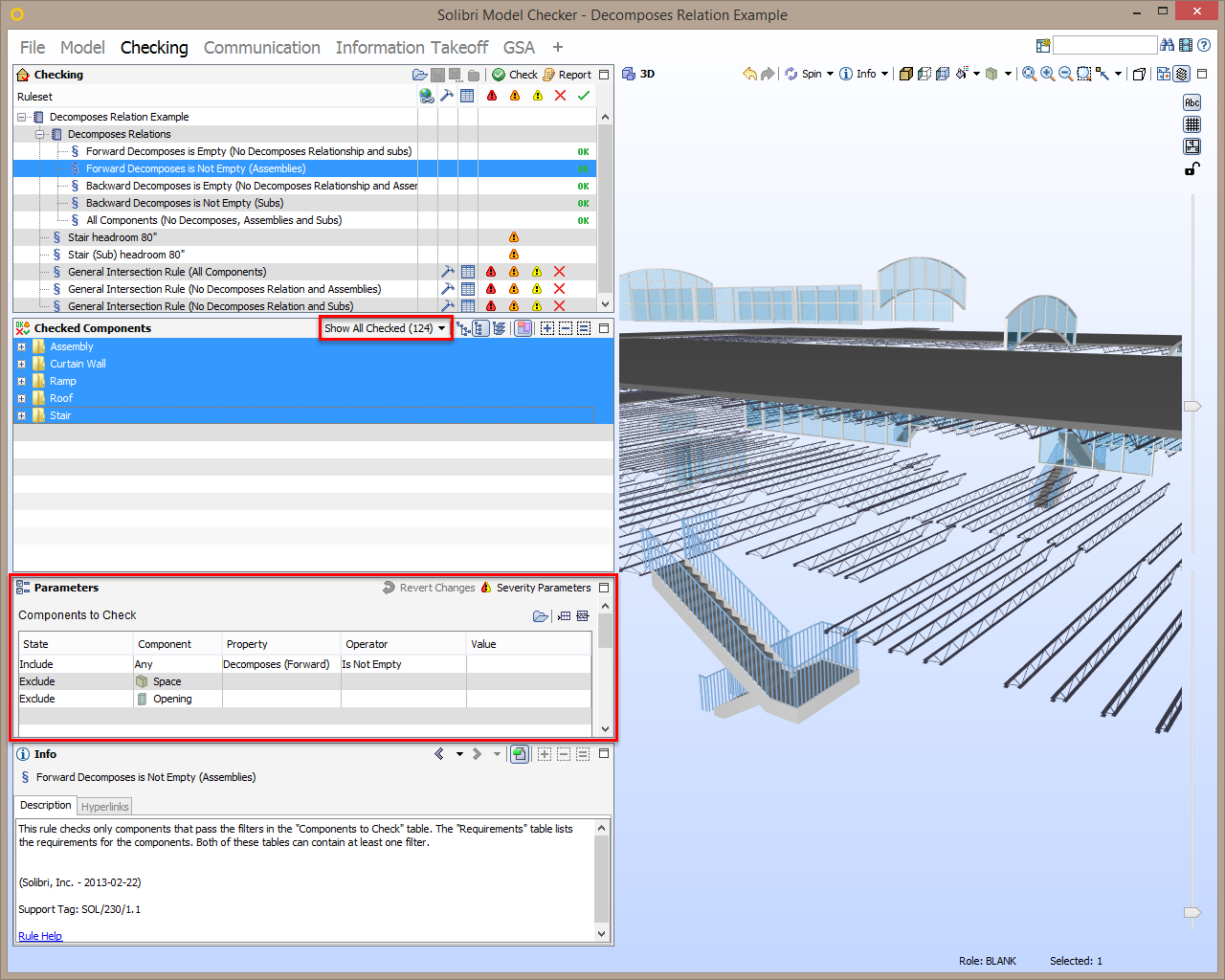
Setting the filter to include any component that has a non-empty forward decomposes relationship only checks the assembly components such as stair assemblies or beam systems:
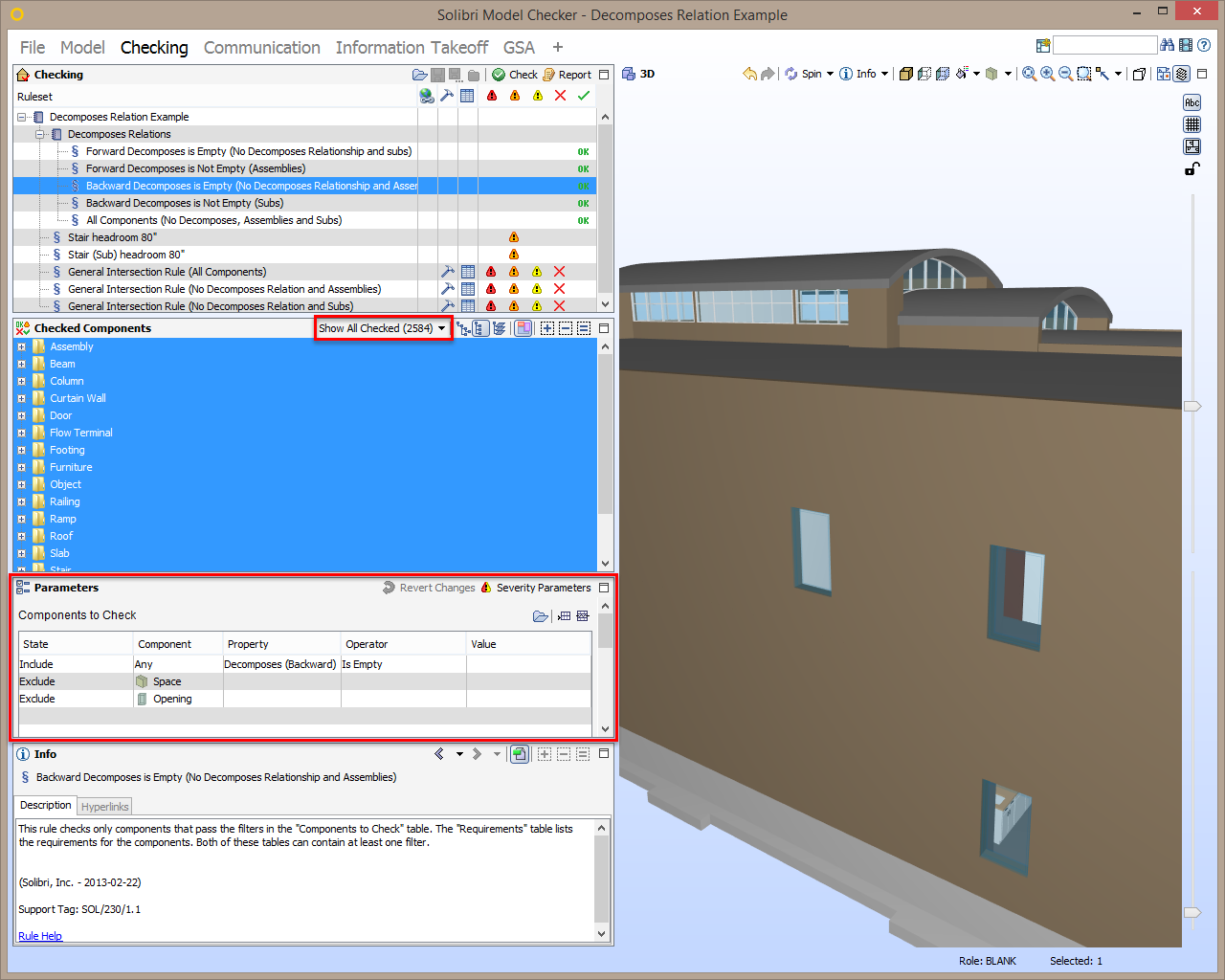
Setting the filter to include any component that has an empty backward decomposes relationship checks any component that doesn’t have any decomposes relation such as a wall, window, or door along with the assembly components such as stair assemblies or beam systems, but not the individual sub-components that make up the assemblies such as railings and beams:
Setting the filter to include any component that has a non-empty backward decomposes relationship only checks the individual sub-components that make up assemblies such as railings and beams:
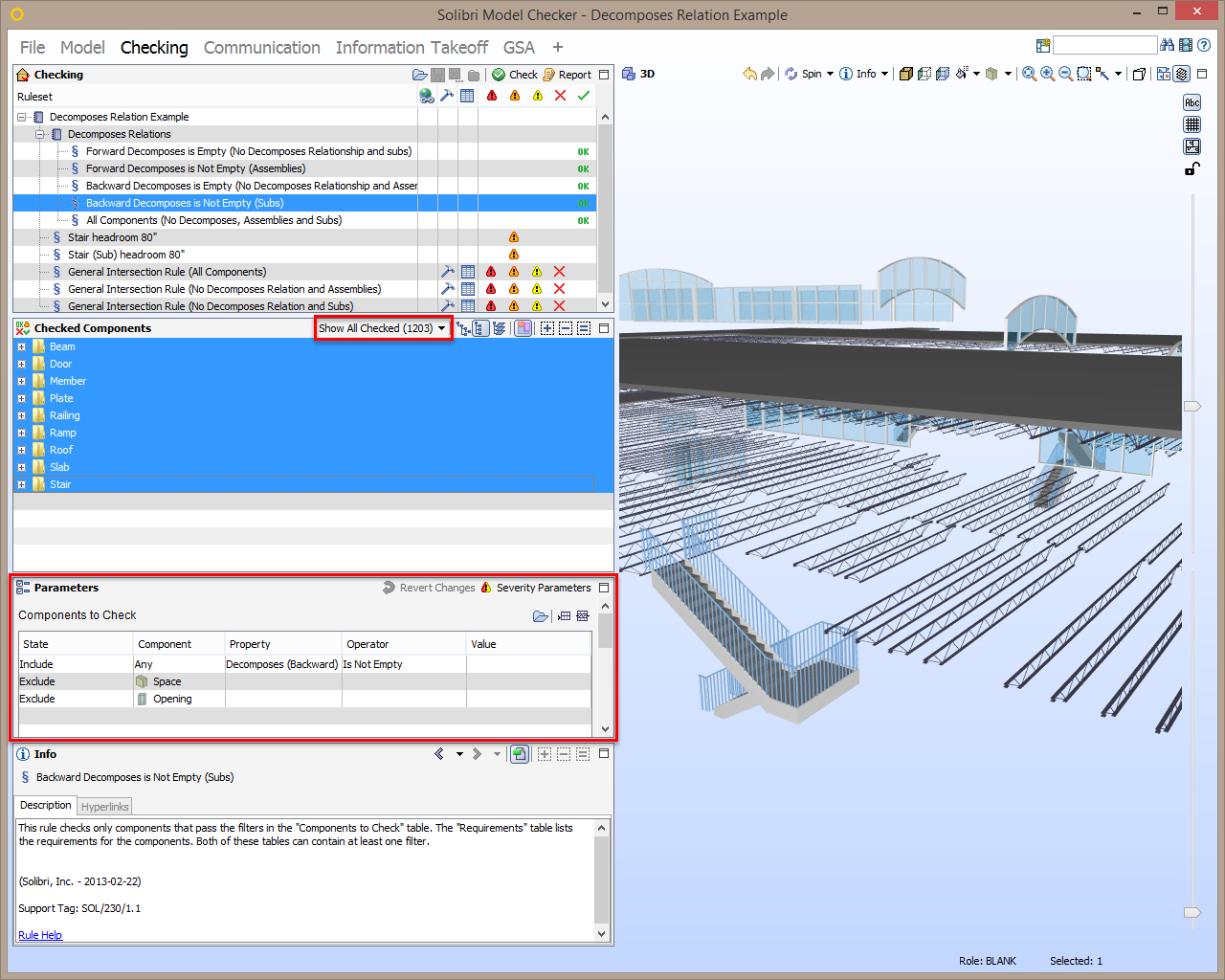
Stair Headroom Clearance Example
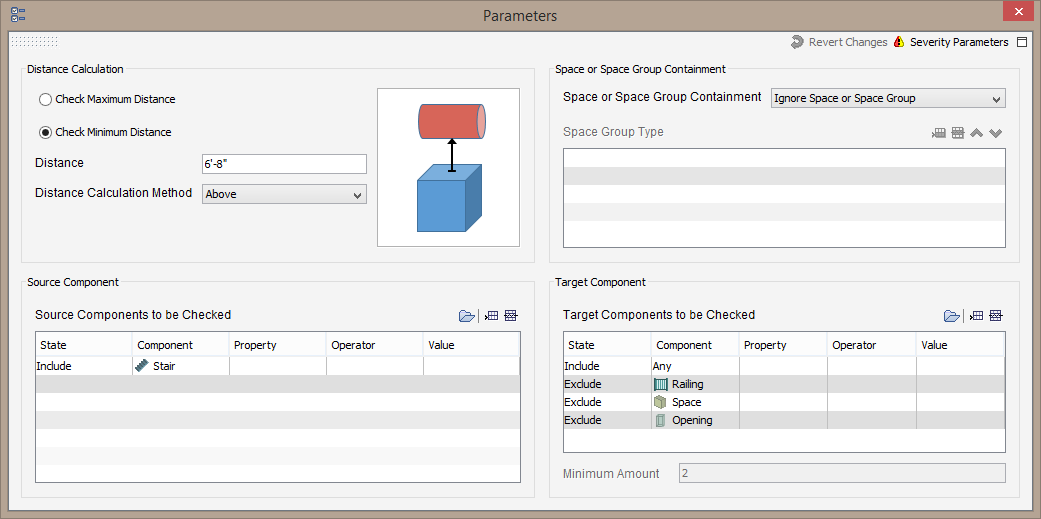
To check for an 80″ headroom clearance for a Stair (or Ramp), you can use the Component Distance rule to check for a minimum clearance above a stair and any other component with the exclusion of railings that make up the stair, and spaces and openings:
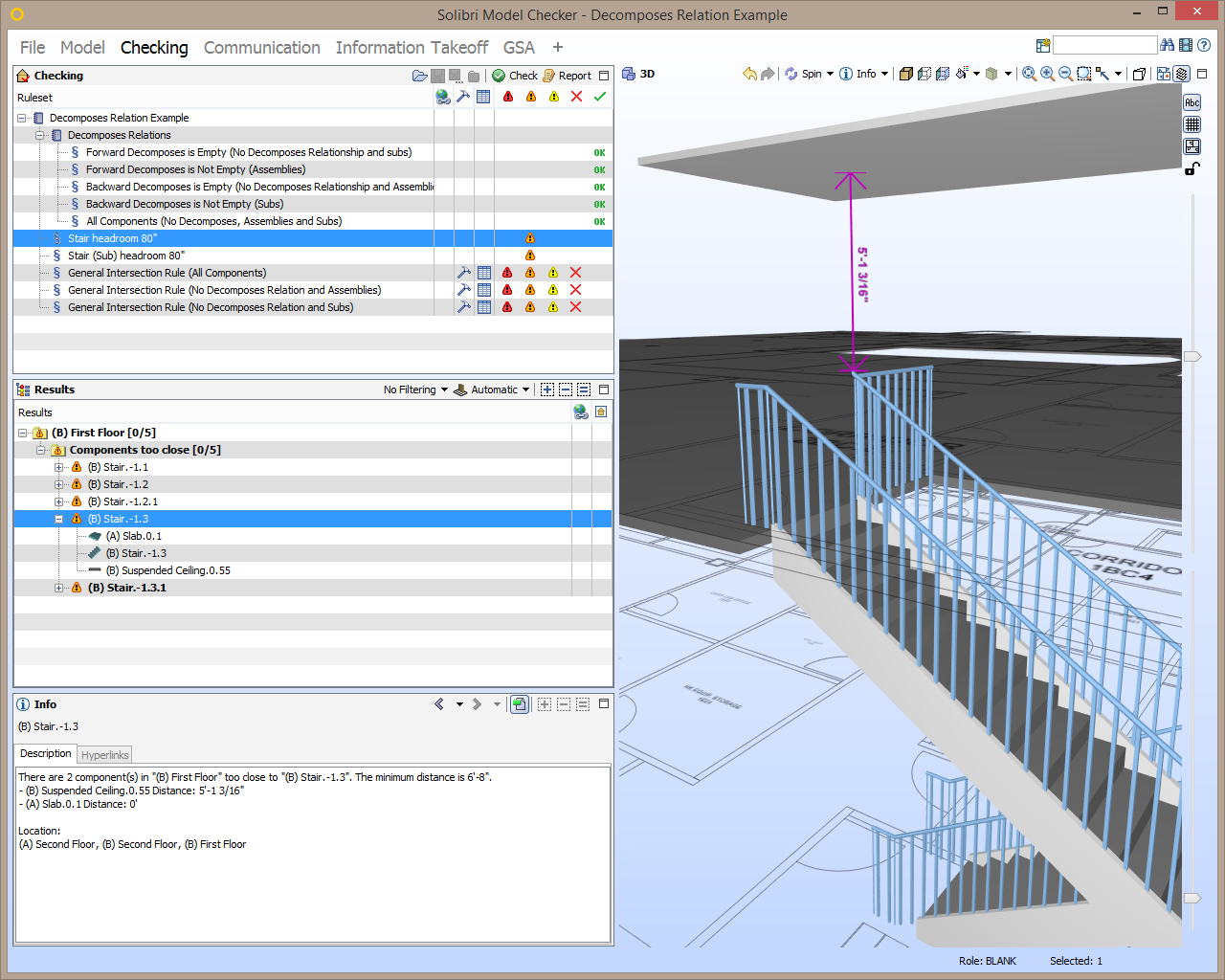
However, the railing, which is a sub-component of the stair assembly, causes a false-positive result since there isn’t an 80″ clearance above the railing:
In the component filter parameters table of the corrected version of the rule, the source component is any stair that has an empty forward decomposes relation.
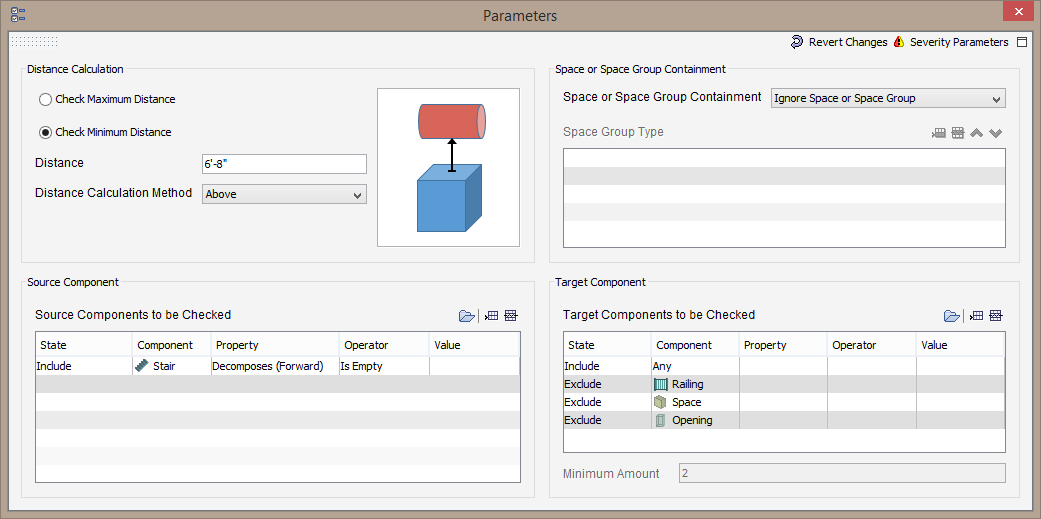
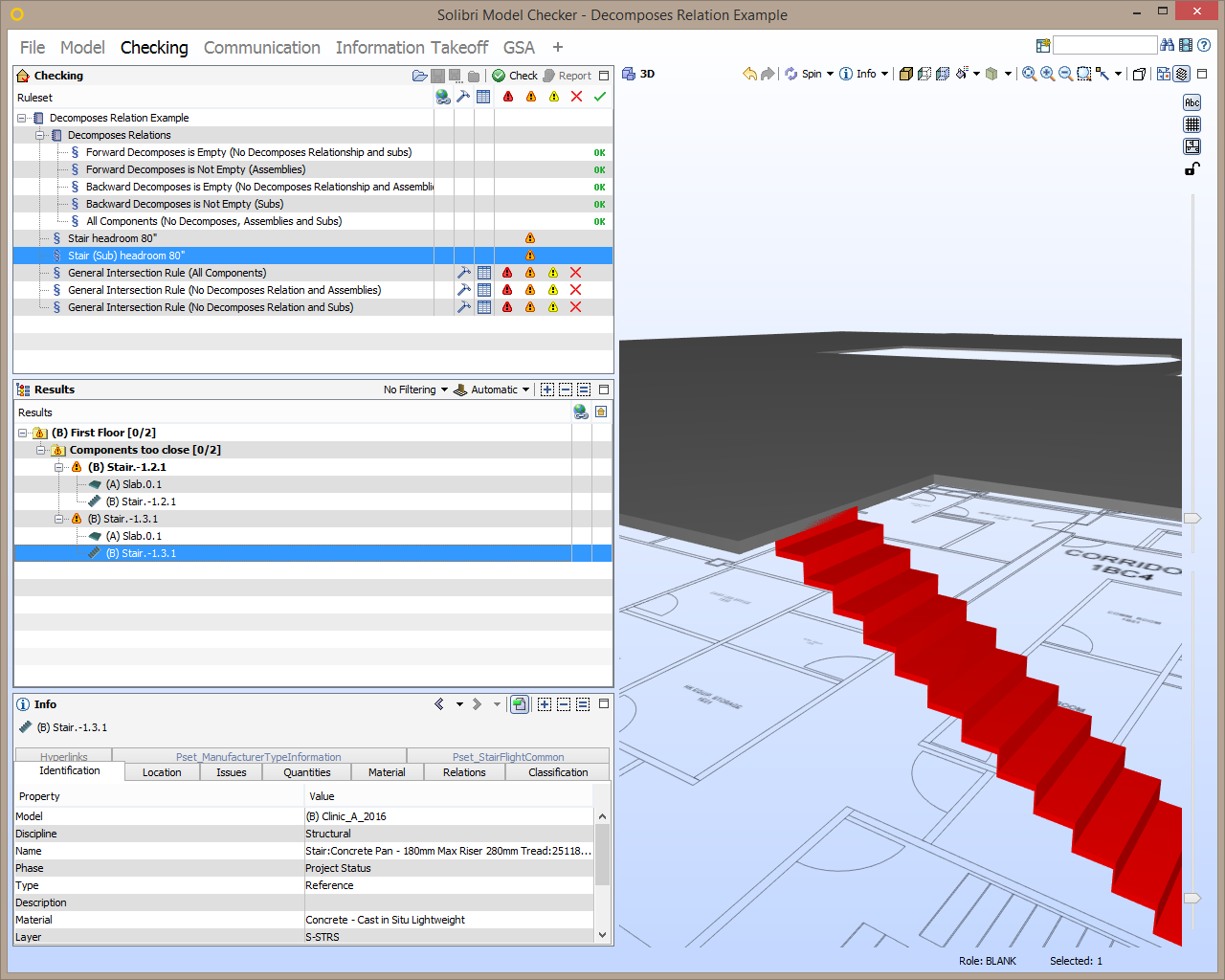
This rule will only check the stair sub-components of the stair assemblies, but not the stair assembly that includes the railings. In the screenshot below, the result that still exists is due to the treads of the stair cutting into the slab; however, there is no longer the false positive result regarding the distance between the railing and ceiling.
Intersecting Components Example
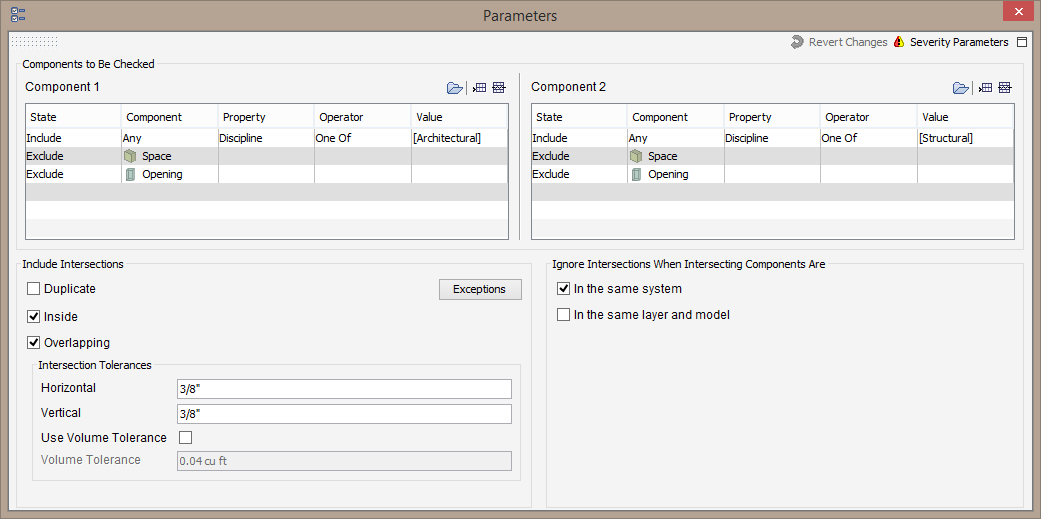
In the rule parameters of the General Intersection Rule (All Components), any component from the Architectural model is checked for Inside or Overlapping intersections with any component from a Structural Model.
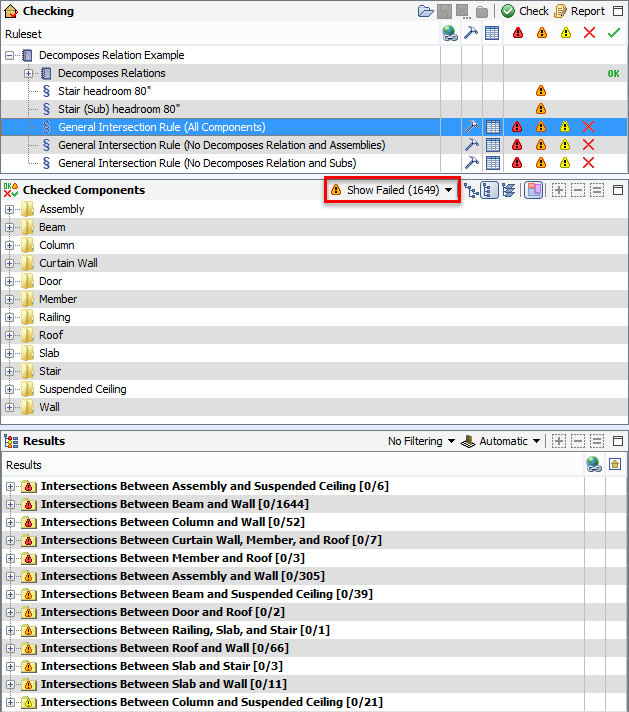
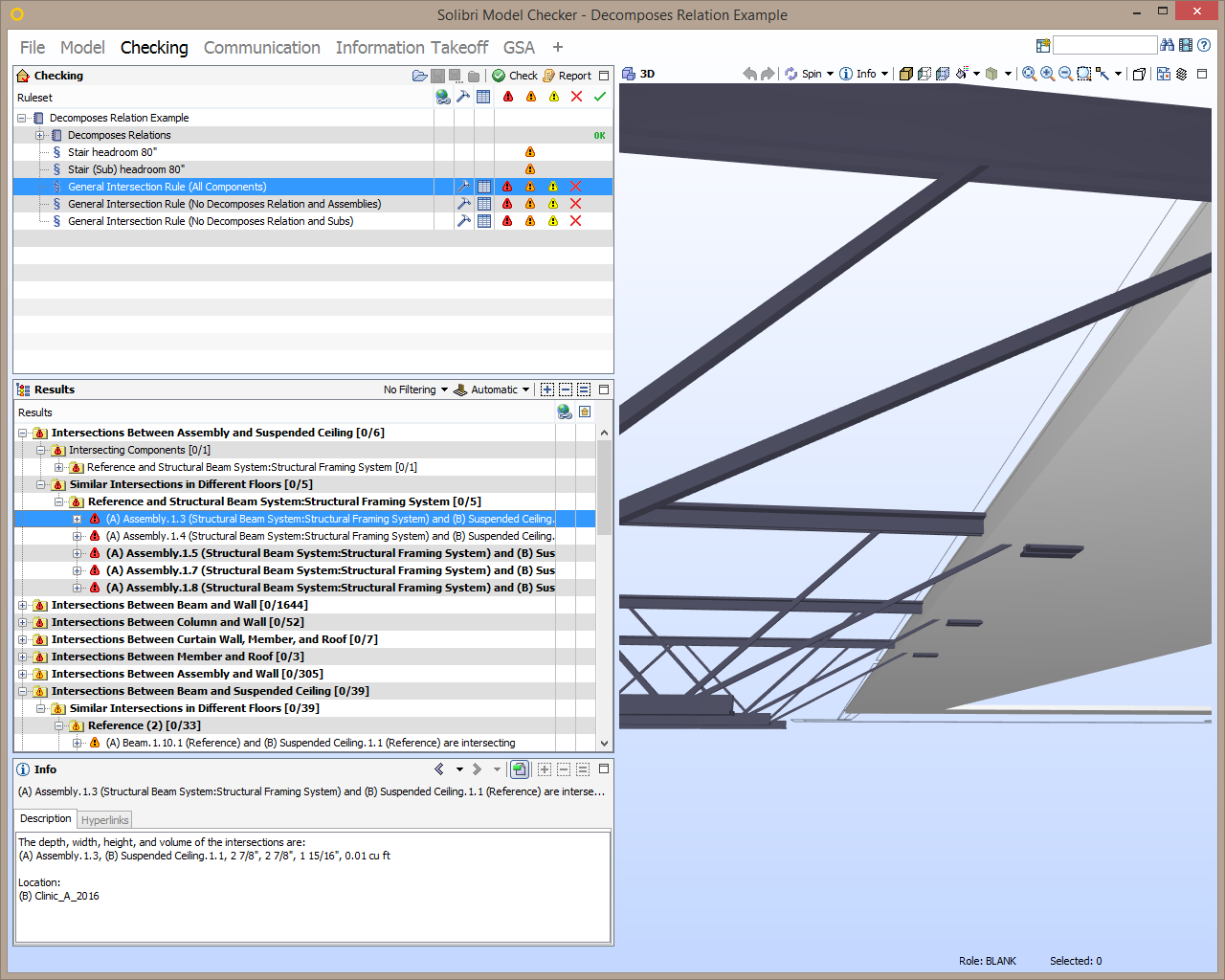
When an assembly such as a curtain wall or beam system intersects a component, both the assemblies and their individual sub-components are returned as results. In the screenshot below, assemblies of beam systems are listed as intersections with suspended ceiling:
However, the beams that make up these beam system assemblies are listed as results as well, as seen below:
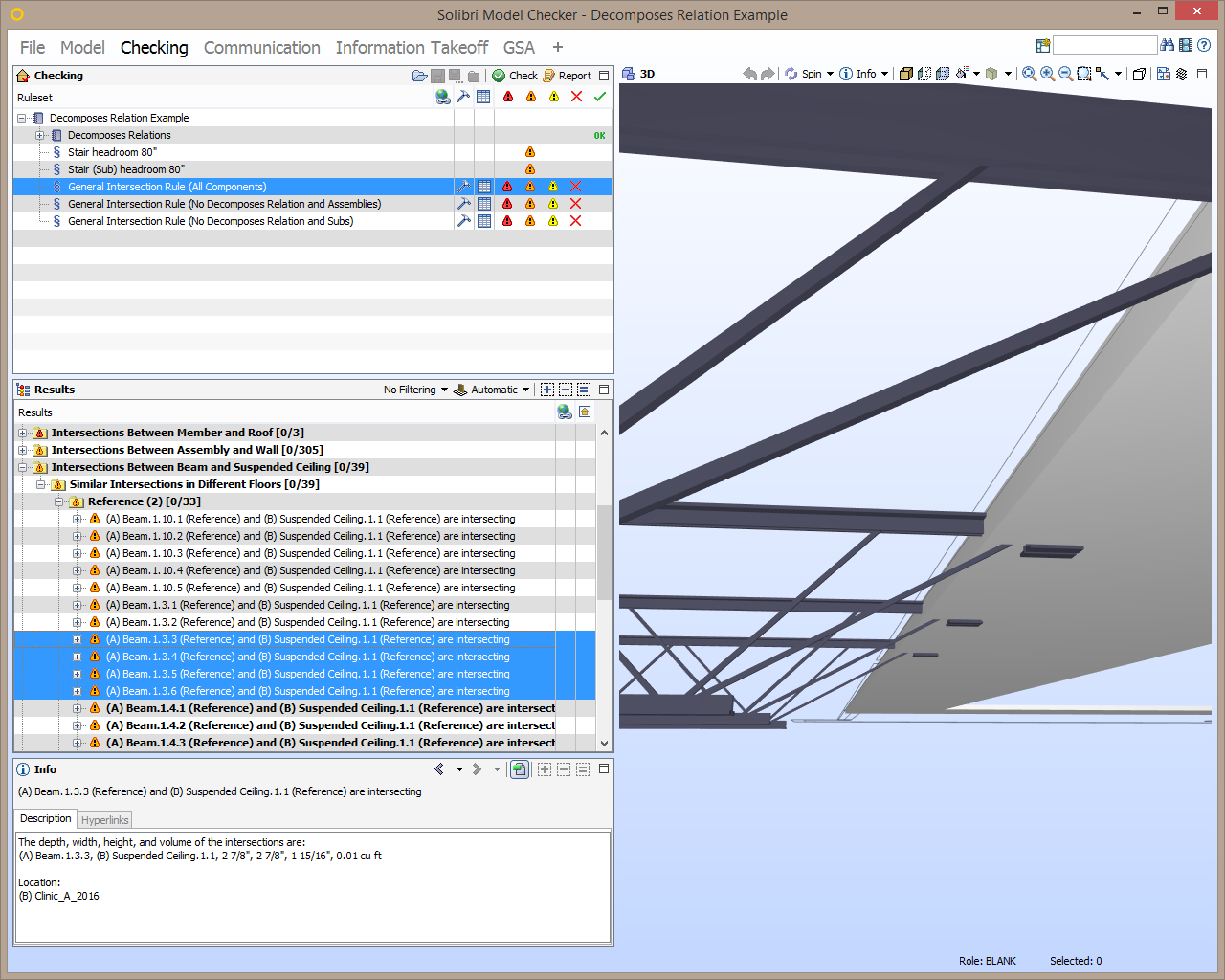
Therefore, there is a double counting or duplication of the same issue.
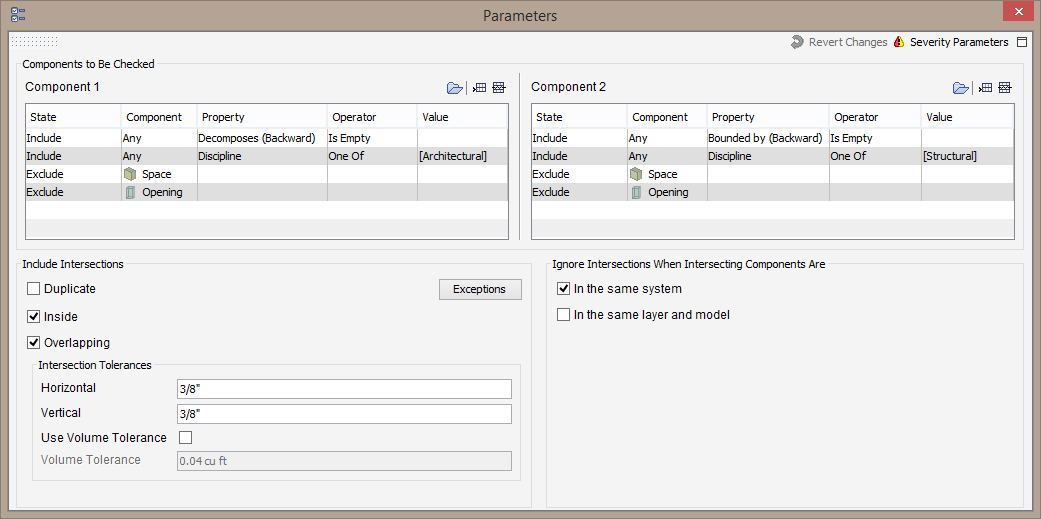
To work around this, you can limit the check to only check components that don’t have a decomposes relation such as a wall or ceiling and assembly components by adding a requirement to only check components that don’t have a backward decomposes relation to components as seen in the rule parameters below for the rule General Intersection Rule (No Decomposes Relation and Assemblies):
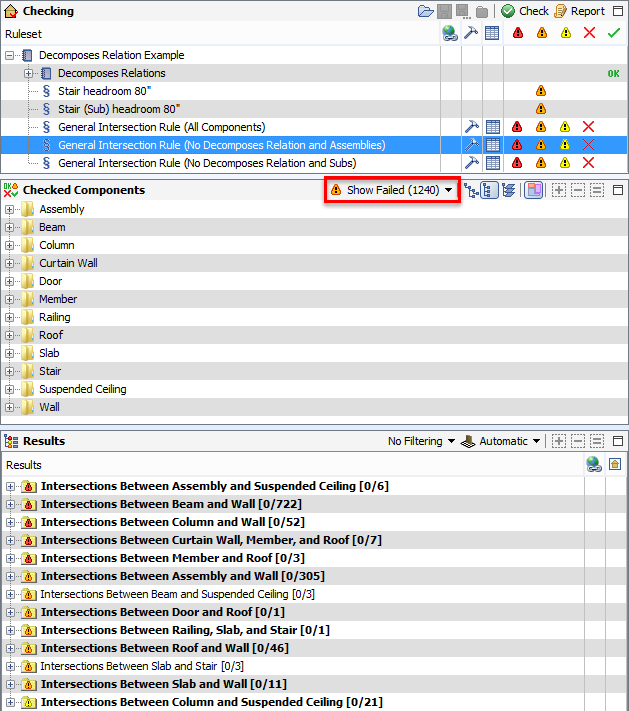
Now, beam system assemblies are still returned as results, but the 3 beams that are listed as results are those that do not make up a beam system as seen below:
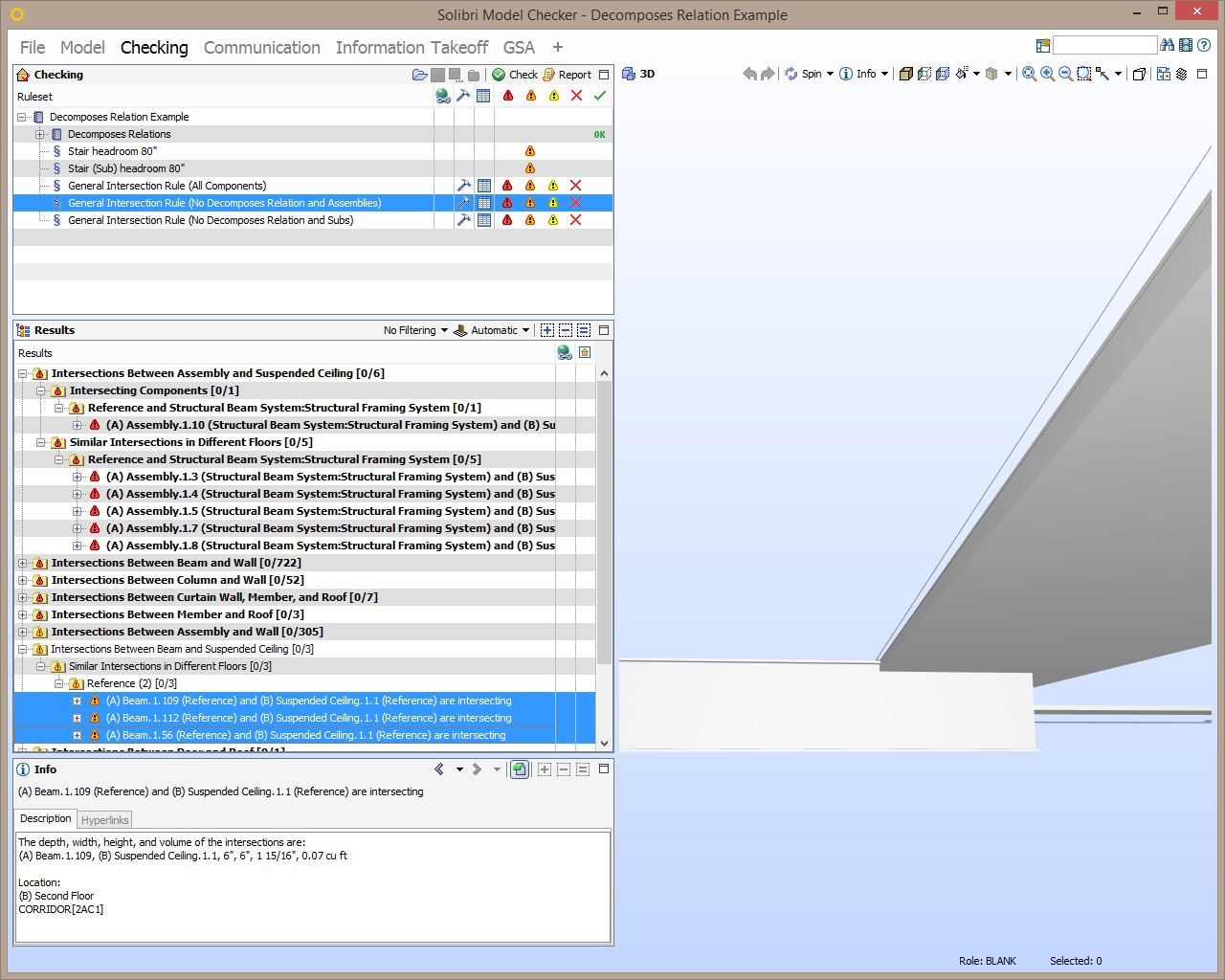
By using the Decomposes relation in the filter parameters table, the number of results listed has dropped from 1649 to 1240, as seen in the Checked Components View.