Solibri 25.12.0 Release Notes
Update to Solibri Office 25.12.0 and take advantage of new accessibility rules, smarter filters, faster performance, and stronger security in your projects.
Release date: Wednesday 17.12.2025
Solibri Office 25.12.0 delivers smarter compliance checks, faster performance, and stronger security for demanding projects. This release deepens Solibri’s role as the central quality gate in your BIM workflow, with new rules for accessibility and component visibility, updates to existing rules, and improvements to usability, IFC handling, 3D tools, and secure, private integrations.
You can access the latest version 25.12.0 in the Solibri Center by selecting Solibri Office and opting for the newest version.
What’s New in Solibri Office v25.12.0?
New features and additions
Regular expression support in filters: Simply use rx: to begin your command. Regular expressions are supported in the Filtering View, Rule Filter/Component parameters, and Classification rules.
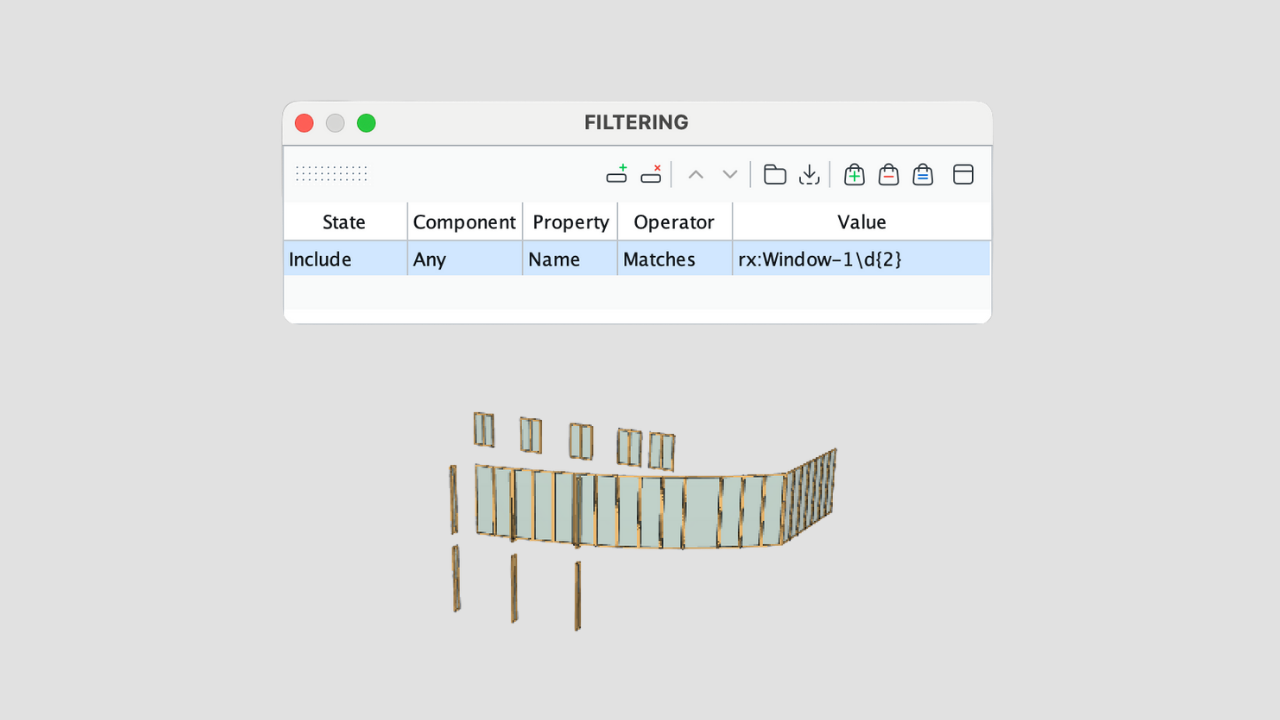
Solibri Office - Regex filter - Support for relative file paths in the model update dialogue has now been implemented. With 25.12.0, Solibri stores the relative path to the project (.smc) internally. The relative path is not shown or indicated in the dialog. If the project location has changed, the relative path is used to locate the updates. Further support, for example, for Autorun will be available later on.
- Initial georeferencing support: IfcProjectedCRS and IfcMapConversion are now available for wide use within Solibri.
Support for Custom, Private CDEs and BCF connections: Solibri now supports local, private BCF and CDE connections for your high-security projects. Contact support for more information [email protected].
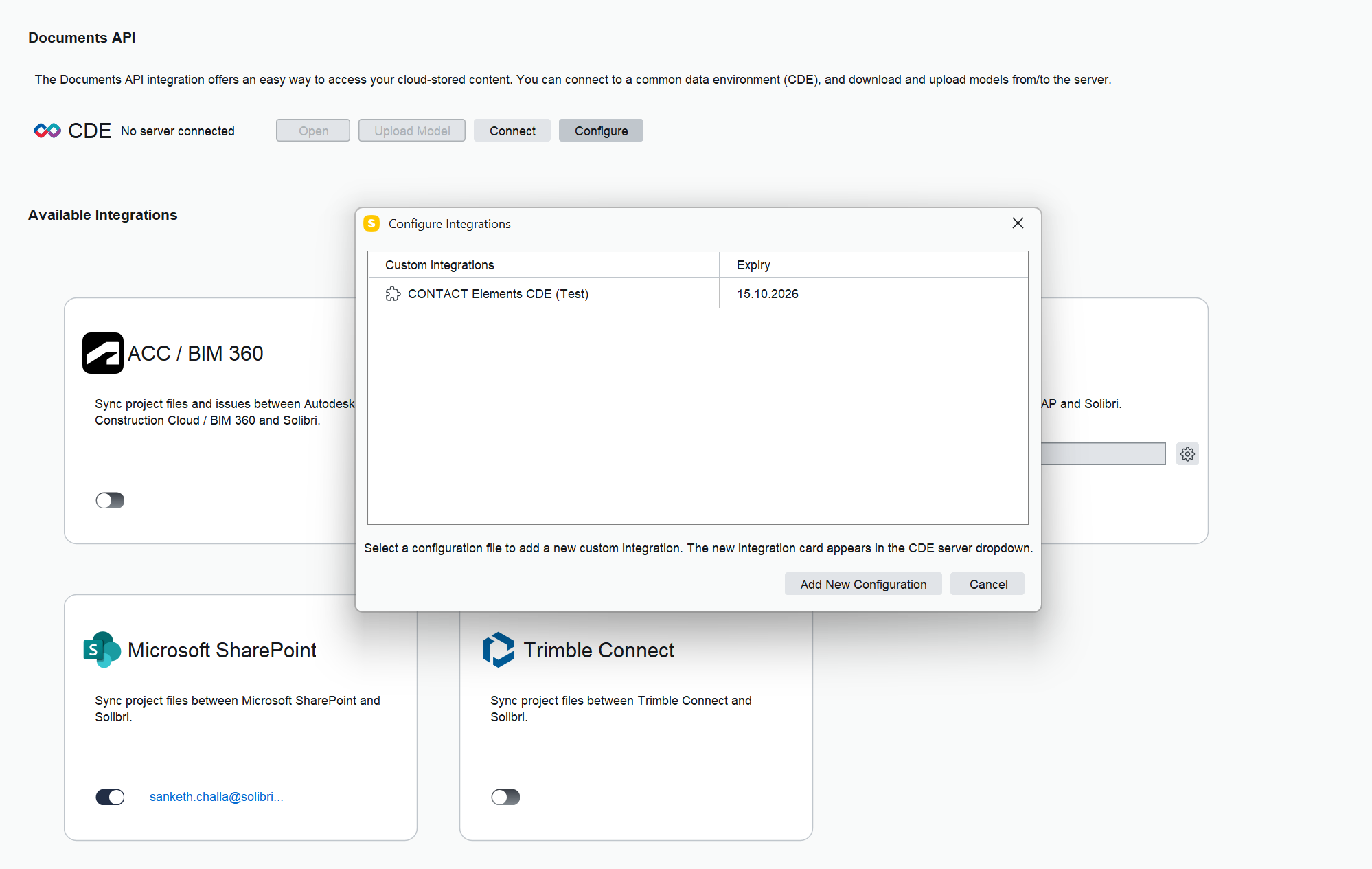
Solibri Office: Private CDEs
New Rules
Rule #248: Accessible Area Around Objects
This ensures that a clearance exists in front/back or on the side of the selected components (e.g., toilets,…) and remains free of obstacles, supporting accessibility.
The rule includes the following functionalities:
- Choose target components via filters and define which components act as obstacles.
- Select if you want to restrict checks to specific spaces and, when needed, automatically merge adjacent spaces into a continuous clearance zone to reflect real-use situations.
- Define a clearance box next to target components by selecting the checking mode (for example, free space in front) and setting the front clearance length and width, starting either from the component’s edge or midline.
- Control the vertical range of the clearance by choosing bottom and top reference elevations (such as component footprint or top) and applying bottom and top offsets.
- [Optionally] allow limited protrusion of the target component into the free space by specifying minimum and additional allowed protrusion lengths (e.g., clearance space under the sink).
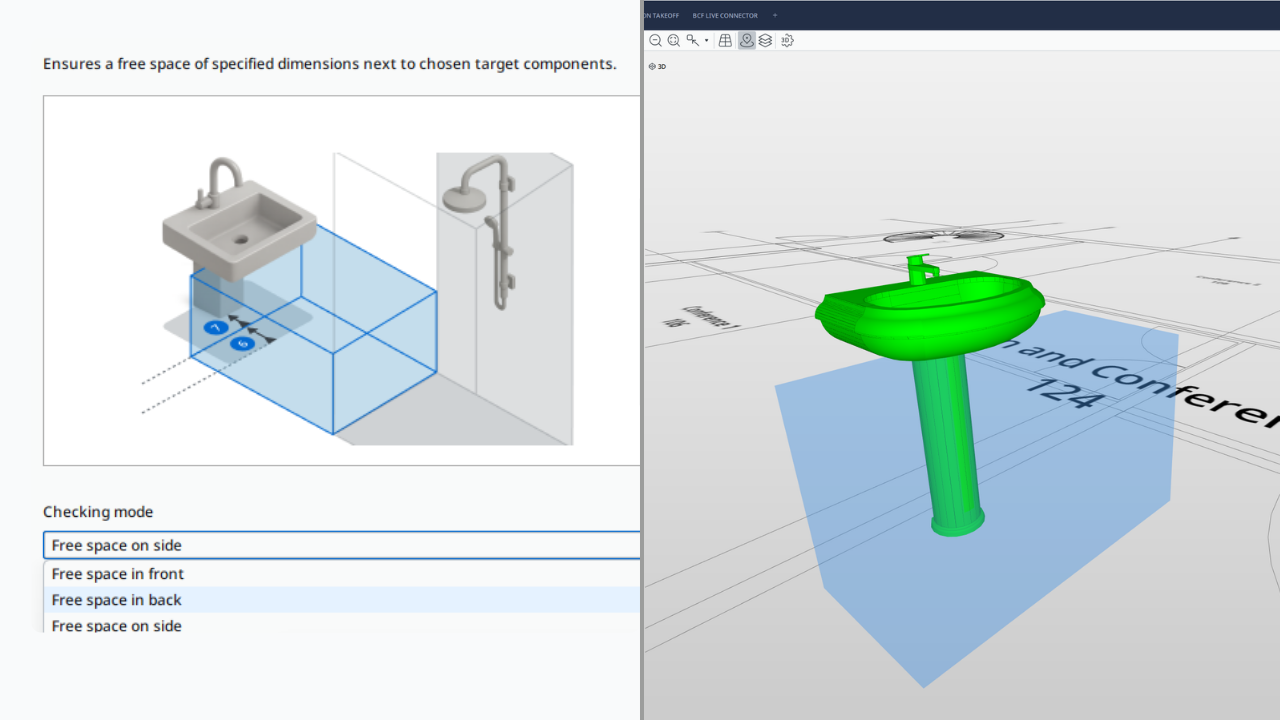
The rule results bring clear visual feedback in the 3D view, showing exactly where the requested clearance volume is blocked or insufficient.
Rule #250: Component Visibility
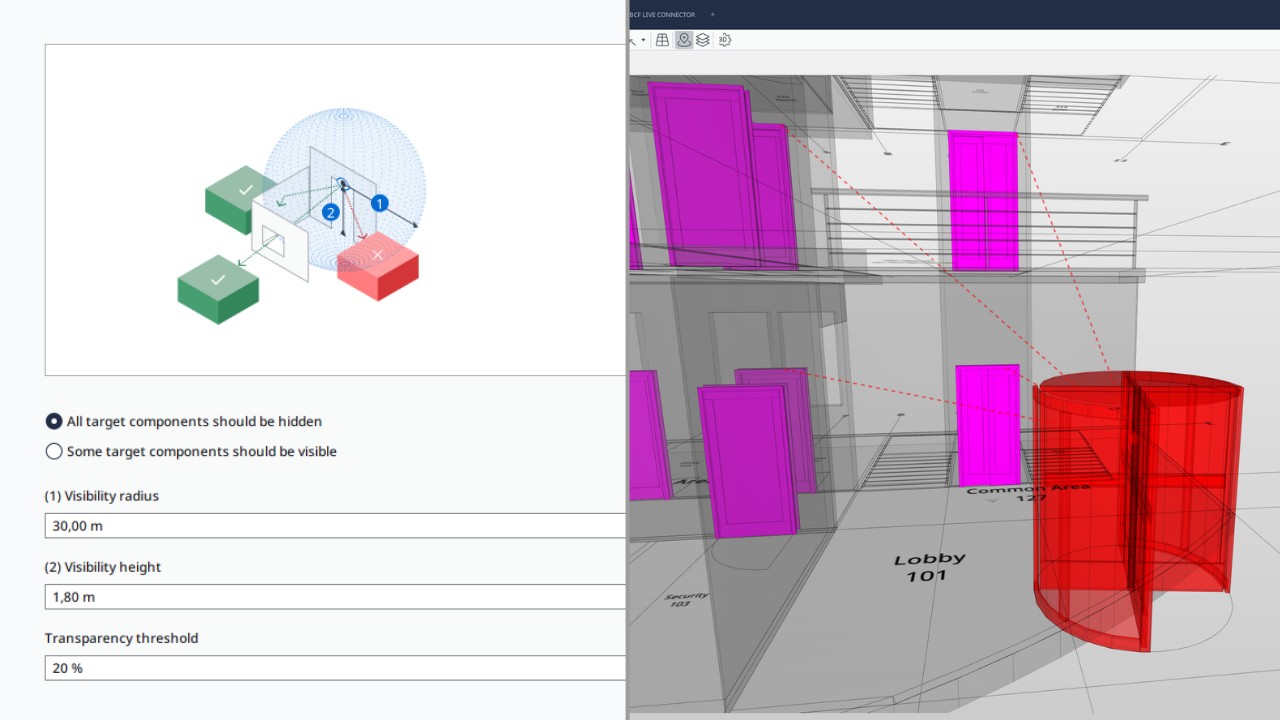
This rule checks whether selected target components are visible or hidden from defined start components within a given radius and eye height, helping you verify privacy, sightlines, and visibility requirements in the model.
The rule includes the following functionalities:
- Use filters to define both the start components and the visibility targets (e.g., the entrance door as the viewpoint and a trash room as the target), and specify whether targets must be visible or hidden, including an optional minimum number of targets that need to be visible.
- Choose obstacles (any components that may block the view) and apply a transparency threshold so that elements more transparent than the threshold are ignored.
- Configure visibility radius and visibility height to represent the viewing distance and eye level for the analysis
The rule shows clear visual feedback in 3D, making it easy to identify where visibility or privacy conditions are not met.
Rule #252: Accessible Route Compliance
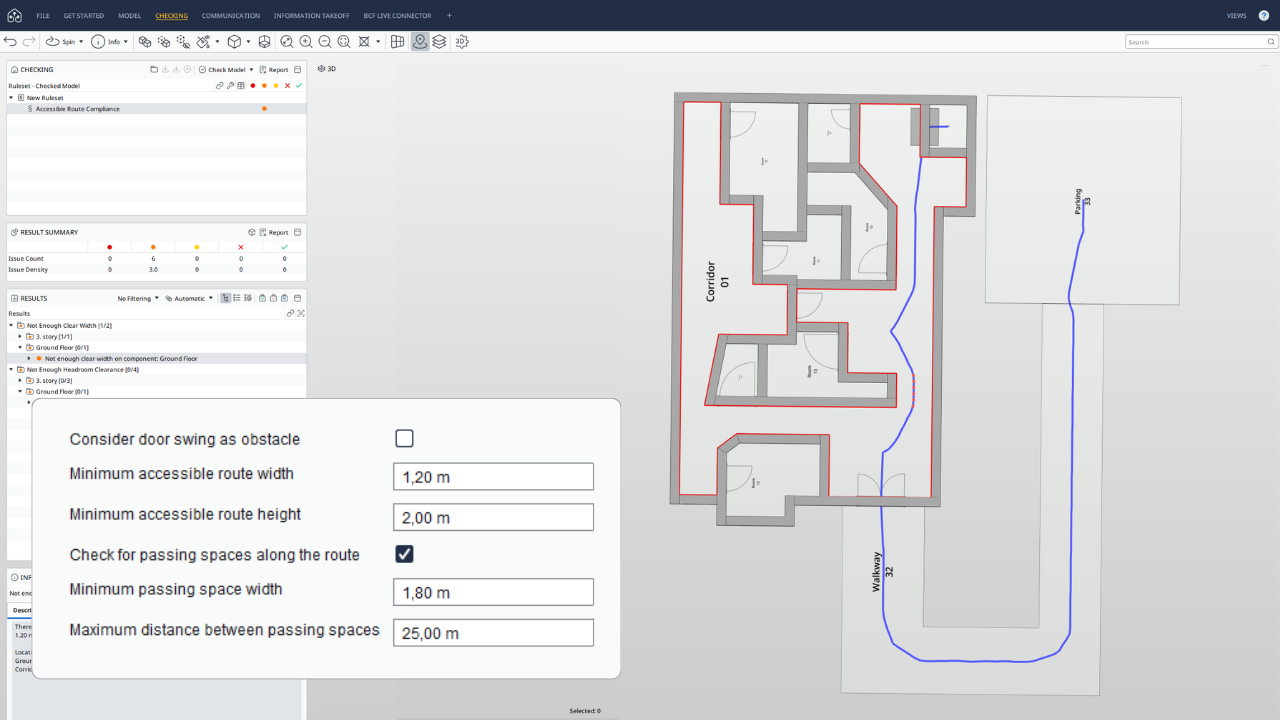
With the Accessible Route Rule, routes are checked from defined start points to destinations (for example, from offices to accessible toilets, or from parking spaces to service areas) to ensure a continuous, obstruction‑free path that meets key requirements for width, headroom, and optionally passing spaces, in line with common accessibility guidelines.
The rule includes the following functionalities:
- Define route components (such as slabs, spaces, ramps, and doors) and obstacles, then set start and end points along with vertical connectors like stairs or elevators
- Specify the minimum clear width and height of the accessible route so the rule can flag segments that fall below these thresholds.
- Check whether additional widening for passing is available at defined intervals (for example, every 25 m) when routes are narrow, ensuring wheelchair users can pass each other.
This rule is ideal for checking the usage logic of the building and legal requirements, while identifying the components that don´t meet the specifications of the accessible route (e.g., rooms). Learn how to use this rule in this help article.
Rule Improvements
Rule #247: Local Accessible Circulation
Rule 247 verifies that local circulation spaces (e.g., corridors) provide accessible passage and remain free of obstacles around doors and adjacent circulation areas.
The rule now includes the following improvements:
- The space accessibility check and the door‑based space check are fully independent. Turning off the door check removes Reachable/Partially Reachable/Unreachable results and leaves only Accessible/Inaccessible space results
- Spaces are split into green (accessible) and red (inaccessible) areas, and the rule passes when more than 90% of the space is accessible.
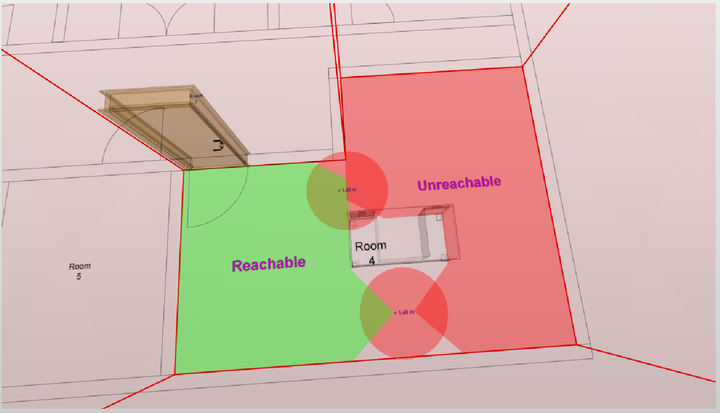
- Door‑related issues use the Narrow Entrance category with shorter, clearer descriptions; the “Accessible” label is no longer shown in space‑only views.
- Sanitary terminals and furniture are excluded by default from obstacles, while doors, openings, and their wall voids are never treated as obstacles; blocked connections highlight obstacle footprints in red.
- Merging of circulation spaces is more robust, and when “Check component circulation connection” is enabled, components in Set 1 and Set 2 are evaluated according to the selected connection option, with a reduced default connection tolerance of 250 mm.
- Check boxes have been replaced with toggle buttons where appropriate.
Rule #210: Accessible Stair
Rule 210 checks stair accessibility, including step geometry, landings, free space, and headroom, to ensure stairs can be used safely and in line with accessibility requirements.
The rule now includes the following improvements:
- The rule detects and validates Tactile Ground Surface Indicator (TGSI) components on stair landings, checking depth, offset, and coverage on top and bottom landings and, when an accessible route is defined, on intermediate landings as well.
Landing checks now verify that landings exist, are level (0° slope), and meet the required dimensions at the start and end of stairs and between consecutive flights, with a new option to require landings between two stair flights.
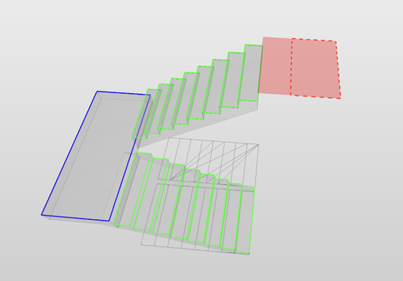
- Handrail continuity issues are no longer reported when the break occurs at a landing that contains a staircase storey shelter blast door, supported by a dedicated blast‑door filter, so that these cases can be excluded cleanly from handrail continuity errors.
Rule #237: Parking
The Parking rule has been enhanced to make orientation handling more flexible and transparent.
- You can now determine the orientation of parking spaces, without having to define driveway (aisle) components; alternatively, you can still specify driveways explicitly when you need maximum accuracy.
- A new setting lets you decide whether parking spaces with unclear orientation are included or ignored in the checking results, instead of always being included by default.
Rule #244 – IDS Validation
Rule 244 continues to validate your model against IDS files, ensuring that the required information is present according to the selected IDS specifications.
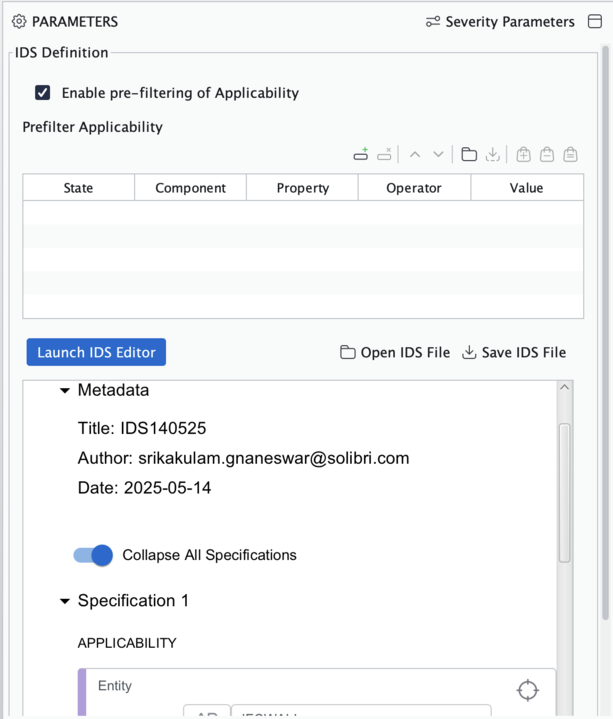
- In addition, we have embedded the IDS Editor web view: IDS files are displayed inside the rule in a read‑only web view of the IDS Editor, ensuring full compatibility between IDS files, the IDS Editor, and the IDS Validation rule.
An option has been added that allows pre‑filtering with the Solibri filter. So you can optionally preselect which components are checked against the requirements defined in the IDS file.
Performance and Usability Improvements
Performance
- We’ve made improvements to the startup and launch time of Solibri, allowing faster access for everyone.
IFC
- Improved the cutting of components with half spaces. This fixes issues related to CSG solid geometries.
- Resolved an issue where openings were positioned mirrored.
- Resolved an issue related to component orientation in specific cases where certain components were tilted due to very minimal differences in negative Z-axis values in the direction of extrusions.
- Improved identification of the System of a Covering using decomposed relation.
- Resolved an issue where the relation between a system and a component was not imported because the relation referred to also non-existent components.
- Resolved an issue where building storey names were not updated during model update.
- Data of the following IFC entities: IfcOwnerHistory, IfcUnitAssignment, IfcMapConversion, IfcProjectedCRS, IfcGeographicCRS, IfcRigidOperation, IfcMapConversionScaled, and IfcCoordinateReferenceSystem are now available as property sets of the project. These properties can be accessed from rules, filters, classifications, and ITOs.
3D tools and viewing
- Markup tools: Continuation of markup has been implemented. Simply continue adding the same markup tool where you left off. End the process with Esc.
- Measurement tools: There are now more possibilities to customize measurements, such as auto-hiding distance factor, as well as setting the transparency of measurement bubbles.
- Scrolling: BCF Live Issue Details view scroll behaviour has been improved. Additionally, ITO scrolling has been enhanced, and the scroll bar is now more visible.
Sections Planes: Section planes can now be easily removed or restored quickly. Ctrl + t (or Cmd + t) is now the default shortcut for restoring and/or removing shortcuts directly.
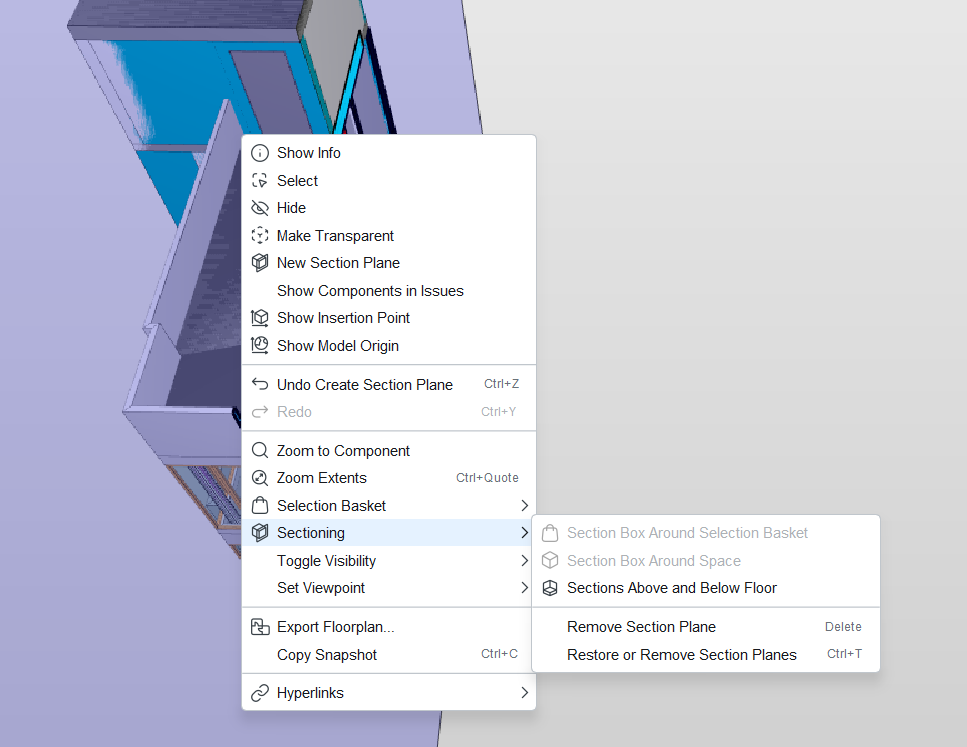
Solibri Office – Section Panes
Security
We’ve improved security to comply with the following Common Vulnerabilities and Exposures (CVE) specification as per the National Vulnerabilities Database (NVD).
- Updated Jersey Client to 3.1.11, resolves NVD - CVE-2025-12383
- Updated Tomcal Embed Core to 10.1.47, resolves CVE-2025-48989
- Updated Spring Core to 6.2.12, resolves CVE-2025-41248
- Updated Logback core to 1.5.20, resolves CVE-2025-11226
Additional improvements
- Rule Logic: Solibri now displays a clear message when opening a rule from an incompatible (e.g., newer) version instead of producing random glitches.
- Rule #245 Clash Detection Matrix now shows the currently referred Excel file in the UI.
- Clash Detection Matrix now allows for editing the matrix without losing existing slides for new projects.
- Classification now supports Formulas added in Excel and imported to Solibri.
- Autorun now supports updating Presentations from BCF files.
- Autorun now supports updating Clash Detection Matrix from Excel.
- We’ve improved the performance of visualizing results, which helps especially when there are many issues to be displayed (affects Rule #234).
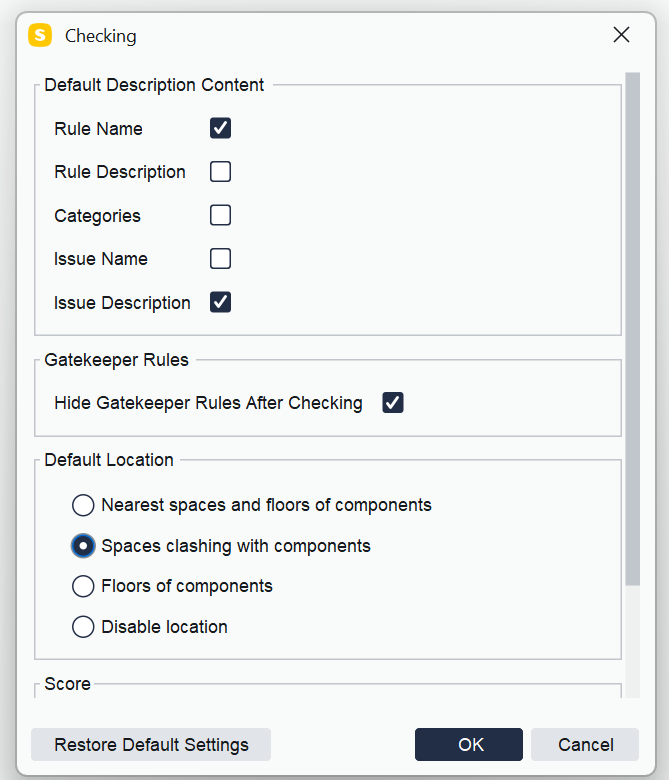
Location information in Issue Details: It is now possible to select different options for Location information in Issue Details. The selections are Nearest spaces and floors of components, Spaces clashing with components, Floors of components, and Disable location. Disabling the location will improve checking performance.
Bug Fixes
- Resolved an issue where Classifications that contain references to Disciplines in the Classification Rules were not automatically updated when new models are added to an .smc file.
- Resolved an issue where extension installation was failing with Solibri 25.9.0.
- Resolved an issue where, when adding face area measurements of multiple faces, measurement bubbles were stacked together, displaying only the topmost result.
- Resolved an issue in Rule #1 General Intersection, where intersections between certain components (Walls, Openings) were not found in some cases where the tolerance was set to a non-zero value.
- Resolved issues in the Rule #244 IDS checking:
- Inconsistent case sensitivity when applying regex patterns for IFC Entity facet exceptions.
- Multiple Attribute conditions in the Applicability section were treated with OR logic.
- Excluded components in the Gatekeeper rule were still appearing in checking results.
- Resolved issues in Rule #245 Clash Detection Matrix, where large coordinates caused the clash visualization to break and jump in the 3D view.
- Resolved an issue in Solibri Formulas where:
- Invalid formula =NOT(“ABC”) prevented Classification from opening
- Equal integer and decimal number comparisons returned the wrong value (1 = 1.0 or 1 <> 1.0)
- Fixed the “Close” icon in Classification view, Checking view, Workspace (Ruleset manager), and ITO view toolbars to correctly represent the “Close” action.
- Resolved an issue related to Autorun ITOs where takeoff by name was calculating all ITOs as opposed to only the referred ITO.
- Resolved a bug where ACC Issues was limiting the amount of assignees available to be selected.